
Browsing the Schema Documentation
This page explains how to browse and search an imported schema as a type catalog. For terms such as type, leaf, and branch, see Key Terms.
Prerequisites
- The schema import succeeded per the steps in Importing a Schema (the state where the counts of type definitions and Query fields are shown in green). Even a partial success that includes some errors shows the type catalog as long as a schema could be built.
- If the import failed (a red error is shown in the schema panel), the type catalog is not shown. First see "Handling Errors" in Importing a Schema.
How to Read the Type Catalog
When the schema import succeeds, the type catalog tree is displayed automatically following the summary in the schema panel (the left panel you open with "Schema" on the rail at the far left; heading "SCHEMA"). No additional action is required.
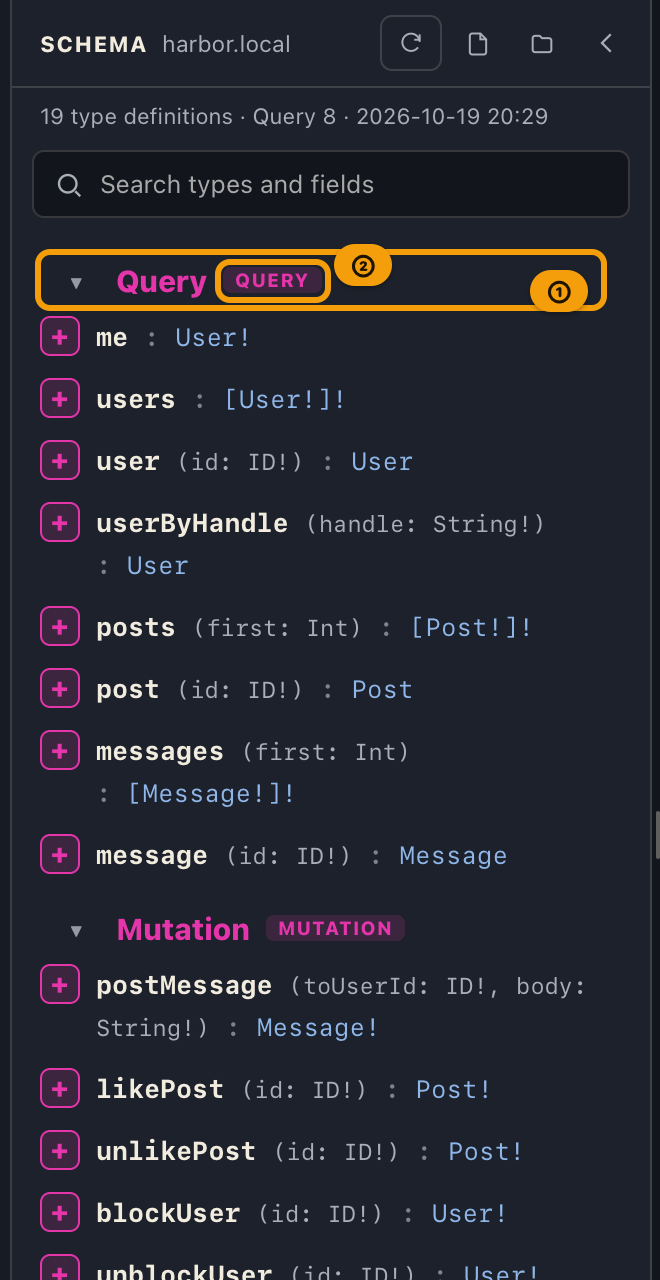
The type catalog lists every named type in the schema (types beginning with __, used internally by
introspection, are excluded). It's ordered as follows:
- Root types (
Query→Mutation→Subscription; only those that exist, shown first in this order) - The remaining types, grouped and shown by kind (within the same kind, in ascending order of type name)
- object → interface → union → enum → input (input object type) → scalar
Each type's heading row shows, on the left, an expand/collapse triangle icon (▸ / ▾), the type name, and, at
the far right, a kind badge. The badge is ROOT in an accent color for root types only; otherwise it shows
OBJECT / INTERFACE / UNION / ENUM / INPUT / SCALAR. If a type has a description, it is shown as a note
below the heading.
By default, only the root types (Query / Mutation / Subscription) are expanded, and the rest are collapsed. Clicking a heading row toggles that type's expansion / collapse.
Expand a Type to Read Its Contents
When you expand a type, the following contents are shown according to its kind.
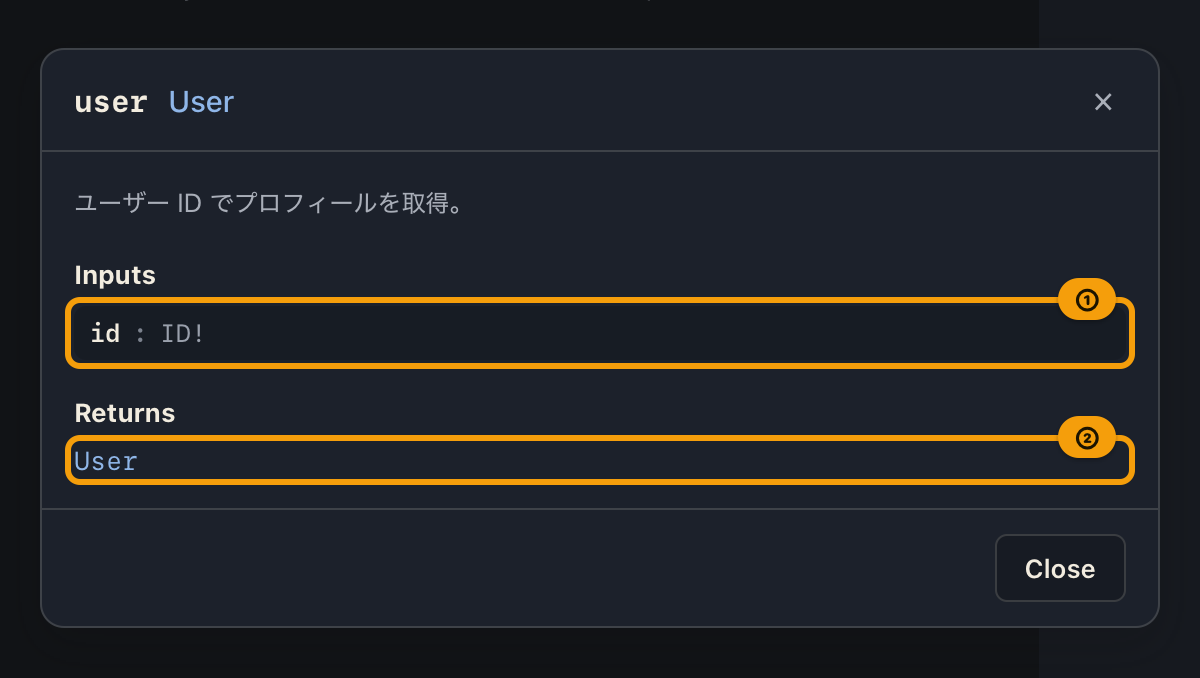
- object / interface / input: a list of fields. Each row lines up the "field name," the "arguments" (if any, as
(argName: type, ...)), and the "return / property type" (shown including list[...]and non-null!, such asString!or[User!]!). When a name, its arguments, its type, or a description doesn't fit on one line, it wraps and is shown in full (never cut off with "…"; the same goes for type headings and their descriptions). Clicking a field name opens a popup dialog where you can review the description, arguments, and return type together. The dialog can be closed with ×, a background click, Esc, or the close button. - union: only a list of member type names is shown.
- enum: a list of values is shown (each row with the value's name and, if any, its description).
- scalar: since there is nothing further to traverse, expanding it shows only the heading row, with no contents.
Leaf and Branch / Jumping by Type Name
For an object / interface field, the type display portion (the : type name part) changes in appearance and
behavior according to the kind of the referenced target. This leaf / branch distinction is the same as the
definition in Key Terms.
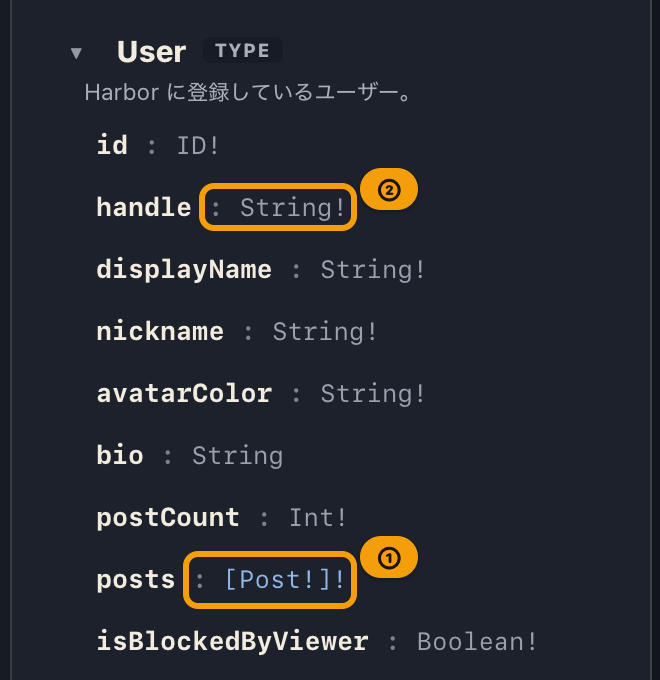
- Branch: when the target is an object, interface, or union, the type name becomes an underlined, clickable link. Clicking it automatically expands and scrolls to that type's heading.
- Leaf: when the target is a scalar or enum, the type name is ordinary, non-clickable text (because there is no deeper hierarchy to traverse).
On the other hand, the type name of an input (input object type) field is never clickable, regardless of the kind
of the referenced target. By the GraphQL specification, an input field's type can only be a scalar, enum, or
input object, so it can never be a branch (object / interface / union), which is what type-name jumping targets. A
field that nests a reference to another input type (for example, filter: UserFilterInput) also has its definition
in the type catalog, but cannot be traversed by clicking. Find the target with the search box or by scrolling
manually.
Note that the current type-name jump is a "move to the matching type's heading within the type catalog" behavior. It does not add to the query builder, nor does it show per-field deprecation.
Narrowing Down with Search
When you type into the search box at the top of the type catalog (placeholder "🔍 Search types and fields"), it narrows down immediately (incrementally).
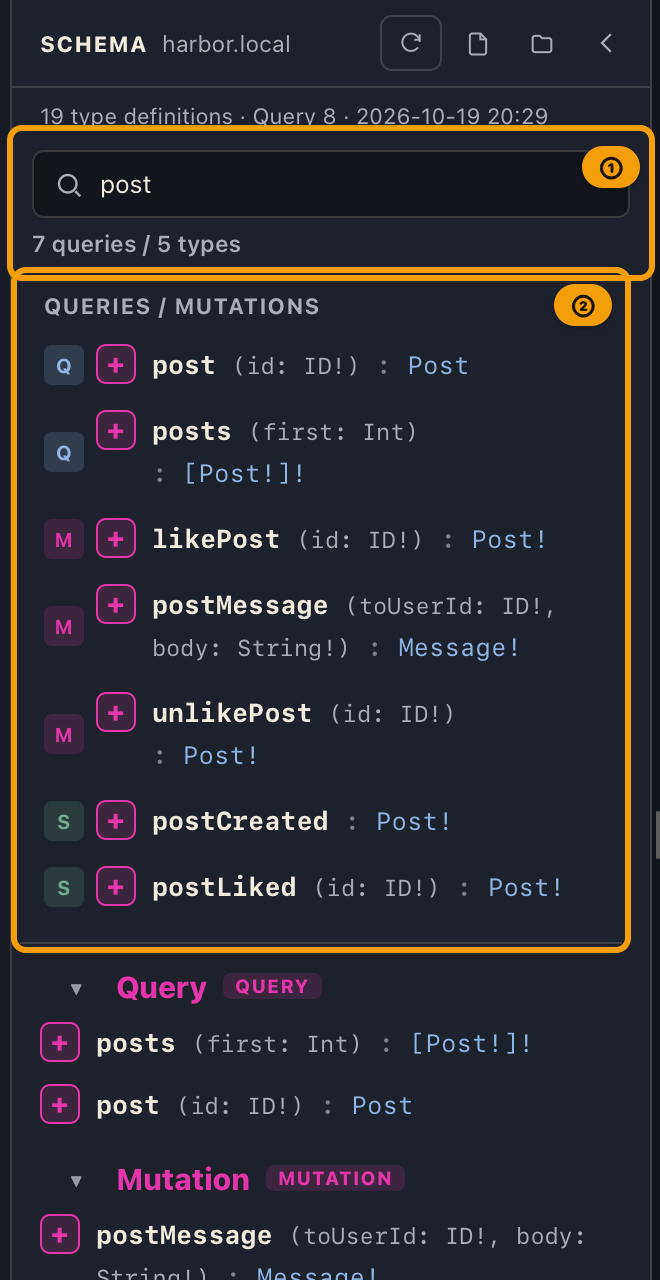
- It is case-insensitive (partial match).
- The match target is the "type name" or "the name of an item under that type" (the field names of object / interface / input, the member type names of a union, the value names of an enum). Descriptions are not included in the search target.
- Matching types are expanded automatically (to show the matched spot).
- While searching, manual toggling of a type group's triangle icon is disabled (to prioritize automatic expansion). Clearing the search box returns to the original expansion state.
- If nothing matches any type, the type catalog display becomes empty (this is not an error).
- You can add with the keyboard alone. In the search box, press
↓to move to the root fields whose names match (the candidates). Inside the candidates, use↑↓to move andEnterto add one (the same as+ query). PressEsc, or↑on the first candidate, to go back to the search box. In the search box,⌘I(Ctrl+Ion Windows / Linux) adds the selected candidate (the first one if you have not selected any). See Keyboard Shortcuts for the list of keys. - When you switch the left panel to Collections or History and come back, the search text and the types you expanded (with the triangle icon) stay as they were. Switching the environment or re-importing the schema returns the catalog to its original state (only the root types open).
Search examples:
user→ types whose name containsuser(User,CreateUserInput, and so on)friends→ types that have a field namedfriends(such asUser)admin→ enum types that have a value likeADMIN
Add to the Query Builder with + query
Only the field rows of the root types (Query / Mutation / Subscription) show a + query (shown on screen as +) at the
left end of the row, just left of the field name.
- A field whose target is a branch (object / interface) shows as a split button — a main button plus a
▼menu (+ query ▼). - A field whose target is a leaf (scalar / enum) is a plain button with no
▼(because it has no children to expand).
Clicking the main button adds that field to the query builder on the Query tab of the center pane as the root,
always with no children. Choosing "Scalars only (one level)" or "All fields (one level)" from ▼ adds it with
the immediate fields inserted at the chosen granularity, for that one time only.
+ query doesn't appear on the field rows of ordinary object types such as User. See
Query Builder for what granularity means, how the split button works in detail, and how to
preview or copy the generated query.
Handling Errors
| Symptom | Likely cause | What to do |
|---|---|---|
| The type catalog tree is not shown | The schema import has not been run, or it failed | Complete the import first — see Importing a Schema. If a red error is shown, see "Handling Errors" on that page |
| Nothing is shown even when searching | The search string does not match any type name, field name, member name, or enum value name | Check for typos, or clear the search box to show everything again. Note that the search does not match text in descriptions |
| Clicking a type name does not move | The target is a leaf (scalar / enum), or it's the type name of an input field (input-field type names are never clickable) | If there's no underline, that's expected. If it's underlined but nothing happens, clear the search box and click again |
| You can't expand or collapse with the triangle icon | Manual toggling is disabled while search is active | Clear the search box, then expand or collapse |
| The Subscription type is not listed | The schema has no Subscription type | The server doesn't support subscriptions — Query and Mutation still work as usual |
Related Documentation
- Importing a schema (the prerequisite for this page): Importing a Schema
- Building a query with
+ query: Query Builder - Sending queries and reading responses: Sending Queries and Reading Responses
- Term definitions: Key Terms
- Manual index: index