
What GalleonQL Is / Installation and Launch
This page introduces what kind of app GalleonQL is, and explains how to install it and launch it for the first time on each OS (macOS / Windows / Linux).
What GalleonQL Is
GalleonQL is a desktop API client dedicated to GraphQL. Think of it as a GraphQL-oriented replacement for Postman or Insomnia (which target REST). You use it in roughly the following flow:
- Import the schema (the definitions of types and fields) from the GraphQL endpoint you connect to,
- Browse that imported schema as documentation while you work,
- Build a query step by step, and
- Switch between multiple connection targets (environments) and send the query, then inspect the response.
The interaction model grows a query by adding branches with add Query / add Child, building up your query one level at a time.
GalleonQL runs as a desktop app, and HTTP requests to external endpoints are issued from the app itself (the desktop process). Because of this it is not subject to the browser's CORS restrictions, so even an internal API that a browser cannot reach directly can be imported from and sent to, as long as your PC can reach it.
The key terms (environment, schema, leaf and branch, environment variables vs. GraphQL variables, and so on) are collected in Key Terms. Reading through it once before you start will make everything easier to follow.
Supported Platforms
GalleonQL is distributed for the following three operating systems. The distribution channel differs by OS (macOS uses the Mac App Store; Windows and Linux use the Releases page of the public repository).
| OS | Distribution channel | Minimum version |
|---|---|---|
| macOS | Mac App Store | macOS 13 (Ventura) or later |
| Windows | Releases page of the public repository (installer .msi / .exe, or an executable) |
— |
| Linux | Releases page of the public repository (.AppImage or .deb) |
— |
About code signing: The macOS build goes through Mac App Store review before distribution, so no Gatekeeper warning appears — you can launch it right after installing. The Windows and Linux builds are not code-signed (unsigned), so your OS's security features will show a warning the first time you launch the app. Follow the steps in "First Launch" below to start it. The warning is about the app being unsigned; if you follow the steps, it will launch.
Installation
macOS
Install from the Mac App Store by tapping "Get" (or the price). Launch it from Launchpad or your Applications folder.
If you previously used the Developer ID build (the one distributed as a
.dmg): your projects, environments, and imported schemas carry over automatically the first time you launch the Mac App Store build. No manual backup or migration step is needed.
Windows / Linux
GalleonQL is distributed from the Releases page of the public repository trimixjp/GalleonQL.
- Open the Releases page.
- From the latest release, download the asset that matches your OS.
- Windows: an installer (
.msi/.exe) or an executable - Linux: a
.AppImageor.deb
- Windows: an installer (
- Open the downloaded file following the "First Launch" steps below.
For the changes in each version, see the release notes on the Releases page.
First Launch
macOS is reviewed and signed as part of installing from the Mac App Store, so no special steps are needed. Windows and Linux are unsigned, so the following per-OS step is required only the first time (once you allow it, you can launch it normally by double-clicking from the second time onward).
macOS
No special steps are needed. Launch GalleonQL from Launchpad or your Applications folder.
Windows
On Windows, when you try to launch an unsigned executable, Microsoft Defender SmartScreen may show a blue screen that says "Windows protected your PC."
- Click "More info" on the screen.
- Click the "Run anyway" button that appears.
This lets the app launch. Only run it once you've confirmed you know where the file came from — that you downloaded it from the public repository's releases.
Linux
On Linux, give the downloaded .AppImage execute permission before launching it.
chmod +x GalleonQL_*.AppImage
./GalleonQL_*.AppImage
- GalleonQL's screen rendering requires
webkit2gtk-4.1. If you get an error at launch that a library cannot be found, installwebkit2gtk-4.1(the package name varies by distribution) with your distribution's package manager. - If you use the
.deb, install it with your distribution's standard method (its dependencies are installed along with it).
The Screen After Launch
When it starts, you see a window divided into three areas (the left panel, request, and response) like the following. The detailed operations are explained on each feature page; here, just get an overall sense of the layout.
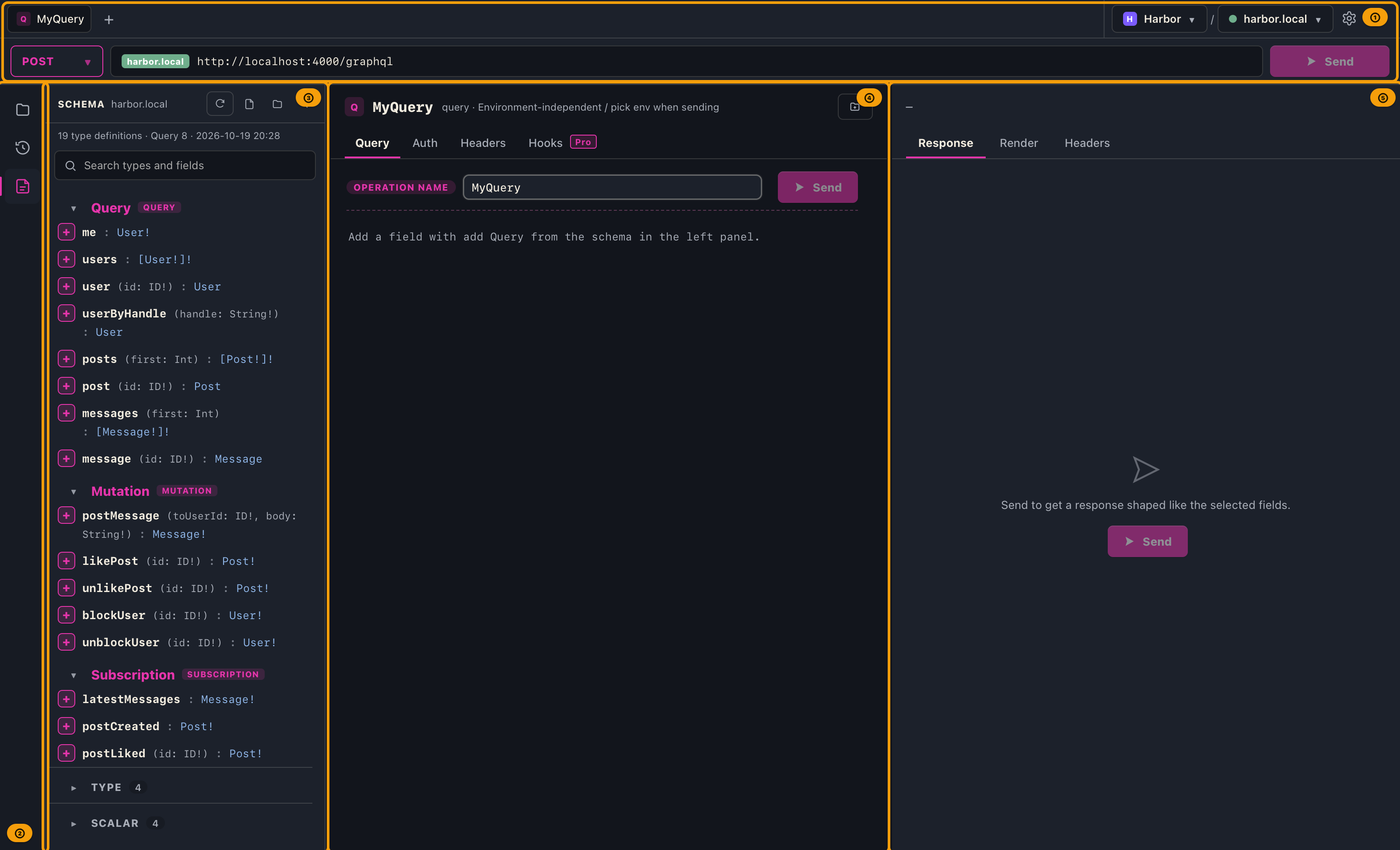
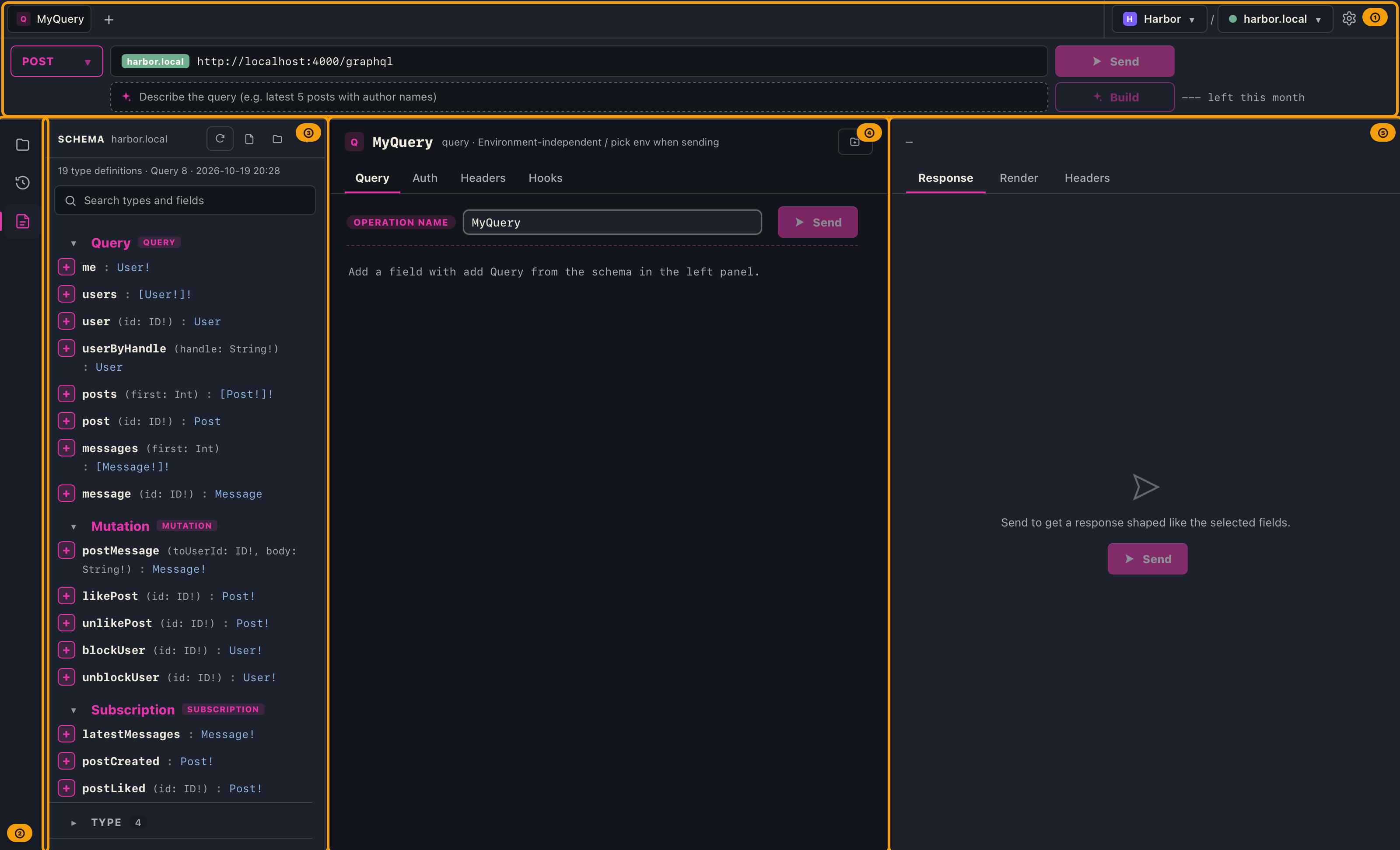
- The two-row bar at the top
- Row 1: multiple request tabs (add a new tab with
+), the project / environment selector, and Settings (⚙). - Row 2: just four things — the HTTP method (POST / GET, etc.), a badge with the environment's name, the endpoint URL resolved from the selected environment, and the Send button right next to it.
- On Pro, an AI assist input row is added below row 2 (AI Assist). The figure above lets you switch between Free and Pro.
- Row 1: multiple request tabs (add a new tab with
- The left rail (a thin vertical strip): icons that choose what the left panel shows (Collections / Request history / Schema). Pressing the icon for what is already showing closes the left panel.
- The left panel: shows the one thing you picked on the rail; at launch, that is the schema. Drag its right edge to resize it (the width is kept for the next launch, and the collections/history width and the schema width are remembered separately. When you make the window narrower, it is temporarily narrowed so the center panes still fit, and it returns to your width when there is room again. It can only be widened as far as the request and response panes in the center can still show their contents without cutting them off, so in a small window it can only be widened a little).
- Collections / Request history (the explorer pane): projects, environments, and collections, plus request history. A name too long for the pane width is shown in full when you hover over that row.
- Schema (headed "SCHEMA"): the type catalog of the imported schema. From here you can add fields to the query builder. Until you resize it, its width scales with the text size (320px at the standard size) and is kept within 32% of the window — but it never gets narrower than 320px.
- The request pane / the response pane: build the query (the Query / Auth / Headers / Hooks tabs) and inspect the
send results. The name on the request pane's header line stays on one line. When the pane is narrow, the "Add to
collection" button shrinks to its icon first to make room for the name, and if that is still not enough, the
operation type and note (
query · Environment-independent …) are hidden (hover over the name to see the note too). Only a name too long even then is cut off with "…" (hover to see it in full). The send status (HTTP status, elapsed time, and so on) appears on the header line of the response pane. Hooks extract or assert after send (Request hooks; Pro).
The first time you launch the app, the window is 1100px wide (or fits the screen if the screen is narrower). The window size is kept for the next launch. If you quit while the window is maximized or full screen, it is not shrunk the next time you launch. The window cannot be made smaller than 1100px wide by 720px tall, so that text is never cut off. If an earlier version saved a smaller window, it is restored to this size at launch.
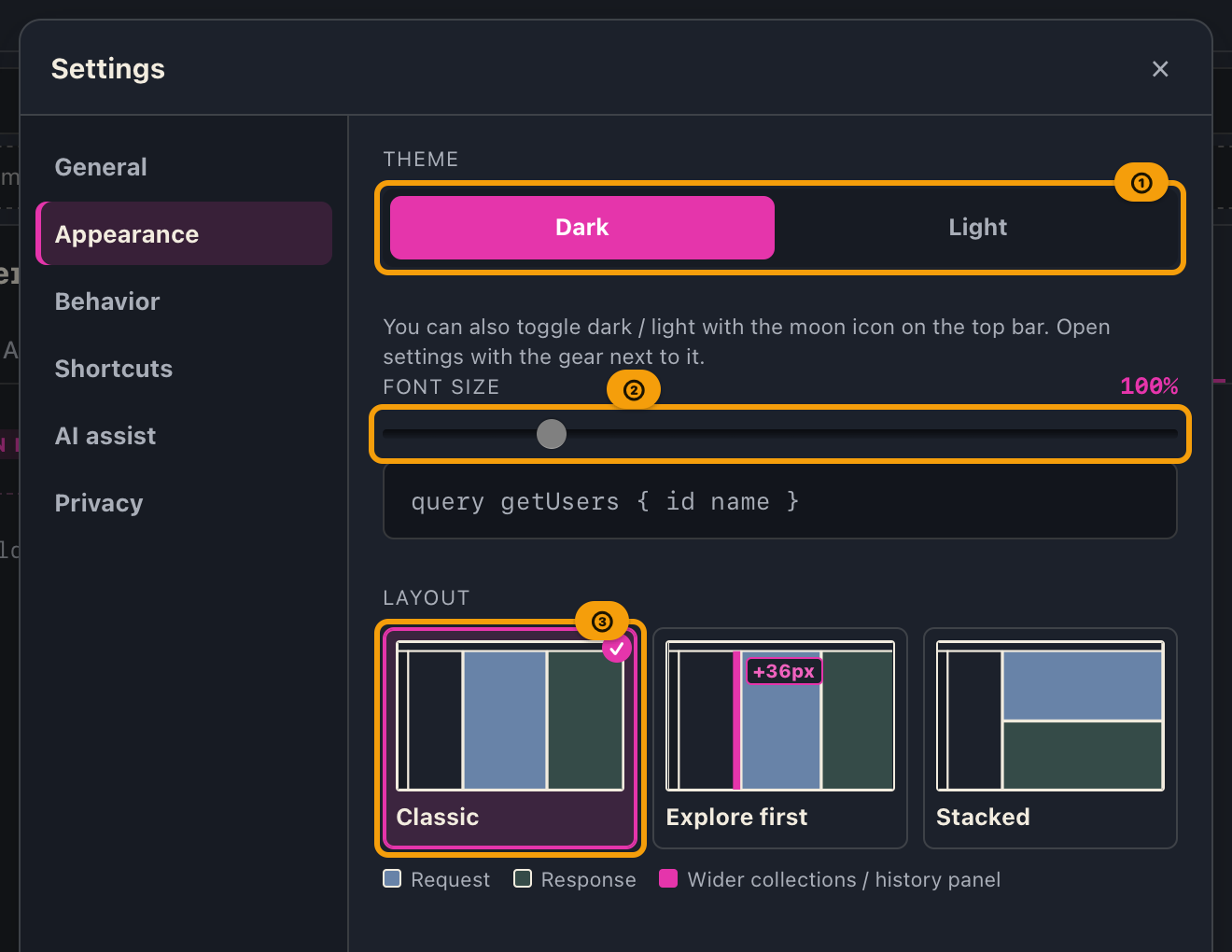
You can change the display theme (Dark / Light), the font size, and the screen layout from Settings (⚙). The default is the dark theme. You can also switch between dark and light with the moon icon at the right end of the top bar.
Settings open in the middle of the screen. Use the tabs on the left to switch between groups of settings.
| Tab | Settings |
|---|---|
| General | Language |
| Appearance | Theme, font size, screen layout |
| Behavior | Schema display, copy format |
| AI assist | AI assist (shown only on Pro) |
| Privacy | Crash reporting, usage analytics |
- Settings open on the tab you last viewed (after you quit the app, they start from General again).
- Below the tabs on the left, the license area is always shown. It shows your current plan ("Free plan", "Subscription active", or after you cancel, the expiration date, such as "Cancelled (Pro until 2026-11-18)") and a button ("Upgrade to Pro" on Free, "License info" on Pro).
- The plan screen and the AI assist usage that you open from Settings appear on top of Settings. When you close them, you return to the same tab.
- In Appearance, you choose the screen layout by comparing window thumbnails (Classic, Explore first, Stacked). In the Explore first thumbnail, the extra width of the collections / history panel is shown in pink, with a label for how much wider it is (while the side panel shows the schema, it is as wide as in Classic, and after you resize the panel yourself, every layout keeps the width you set). With the keyboard, press Tab to move to the selected card, then use the arrow keys to choose another.
The environments you register, the environment you last selected, and the schemas you imported before are saved automatically and restored on the next launch. You do not need to re-enter URLs or headers every time.
The first time you launch the app, you may see an invitation to help improve GalleonQL by sharing anonymous usage analytics. Whichever you choose, you can change it later at any time from Settings. See Usage Analytics for details.
Keyboard Shortcuts
| Key | What it does |
|---|---|
⌘W (Ctrl+W on Windows / Linux) |
Closes the active request tab. Nothing happens when only one tab is left (the app does not quit). |
⌘Q (Ctrl+Q on Windows / Linux) |
Quits only when pressed twice within one second. The first press does not quit: "Press ⌘Q (Ctrl+Q) again to quit" appears at the bottom of the screen and waits for the next press. After one second the count restarts. |
Esc |
Closes the topmost dialog, settings, or editor (the same as its "Close" or "Cancel"). In a delete or cancel-subscription confirmation it means "Cancel", so nothing is carried out. Screens that ask you to choose, such as the analytics and crash reporting prompts, do not close. |
Tab / Shift+Tab |
Moves between the buttons and fields inside a dialog. While a dialog is open, focus does not move to the screen behind it. Outside dialogs, it stops once per group (top bar tabs, rail, lists, and so on), and the arrow keys move inside a group. |
There are also keys for sending (⌘↩), switching tabs and panes, saving, opening settings, and more, and you can change them on the "Shortcuts" tab in Settings (⌘W and ⌘Q cannot be changed). See Keyboard Shortcuts for the list and how to change them. Close a tab with ⌘W; Tab does not stop on the "×" of the top bar tabs.
In most apps ⌘W closes the window, which for GalleonQL would mean quitting. It is bound to close the tab
instead so that a mistaken press meant for a single tab does not throw away everything you are working on.
Requiring two presses for ⌘Q is for the same reason.
Clicking the dimmed area outside a dialog closes it the same way as Esc. After it closes, focus returns to the
button you were using before it opened. This also holds when the dialog changed into another one along the way
(for example, from the plan screen to the "registered" message). Anything opened from the project or environment
list returns focus to the button that opened the list.
Next Steps
- First, prepare a connection target. See Registering and Switching Environments to register and select an environment (connection profile) that holds an endpoint URL, authentication, and headers.
- Import the GraphQL schema for the selected environment. See Importing a Schema.
- For how to read the imported schema, see Browsing the Schema Documentation.
- For how to build a query from the schema, see Query Builder; for how to send the query you built and read the response, see Sending Queries and Reading Responses.
- To save tokens into environment variables after send, or to assert on status/body, see Request hooks (extract and assert) (Pro).
If you get stuck on terminology, you can return to Key Terms. The full table of contents is reachable from the index.