
Reordering and moving
This page explains how to change the order of fields in a query you built, collections, favorites, environments, and projects. For terminology, see Key terms.
The controls differ by location. The query builder (fields in a query you built) offers three ways — drag and drop, the keyboard, and the ⋯ menu. The other four places (collections, favorites, environments, and projects — together, "the explorer pane") offer two ways — drag and drop and the ⋯ menu (there is no keyboard reordering there). Either way produces the same result.
Prerequisites
- The drag handle appears when the row has somewhere to go: either there are two or more items at the same level, or there is a folder it can move into. A row that is the only item in its folder still shows the handle, because it can still be moved to another folder. A row with nowhere to go (a lone project, for example) shows no handle.
- The
⋯menu always shows, even for a lone item. When the row cannot move up or down, only "Move up" / "Move down" are unavailable — "Move to folder…" and renaming still work. - The order of collections, favorites, environments, and projects is saved automatically and survives a restart.
The ways to reorder
Drag and drop (query builder and the explorer pane)
Hover over a row and a handle (⣿) appears at its left edge. Grab it to move the row.
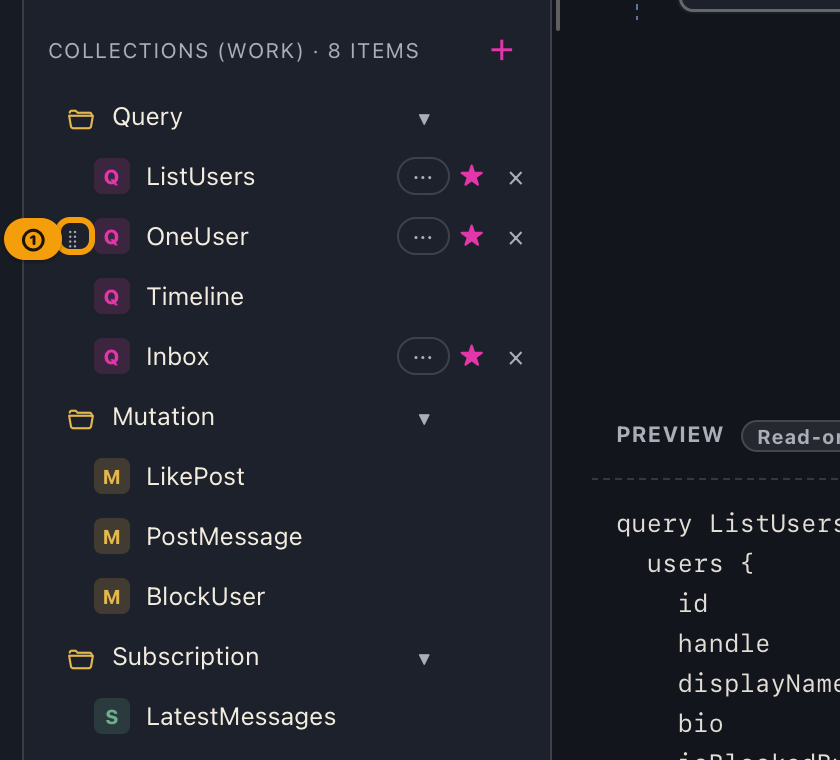
- The row drops where the line appears between two rows. Where the line starts tells you which level you are dropping into: it is indented one step further when the row goes inside a folder, and reaches further left when the row lands beside the folder. The same gap can mean either, depending on whether you aim at the upper or lower edge of a row — check the line before you let go.
- Dropping on the middle of a folder puts the row inside that folder (the folder is outlined and tinted). Aiming at the folder's top or bottom edge instead puts the row beside the folder, at the same level, rather than inside it.
- Rows you cannot drop onto turn red.
- Press Esc while dragging to cancel.
The keyboard (query builder only)
In the query builder, click a row to select it; an outline appears. Then Option (Alt) + ↑ / ↓ moves it one step at a time. Click the same row again, or press Esc, to deselect it.
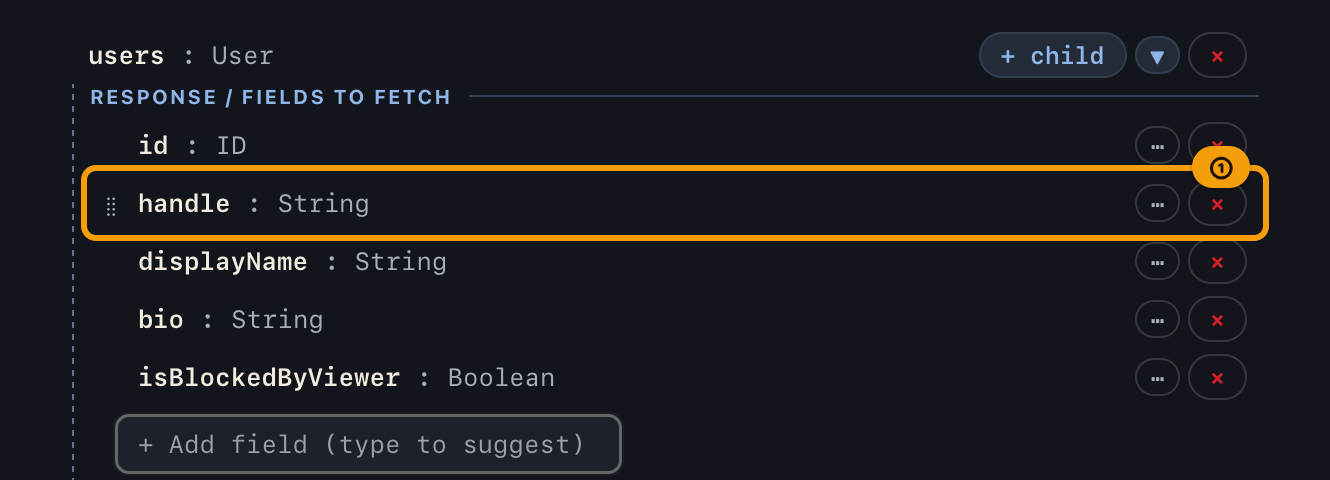
The explorer pane (collections, favorites, environments, projects) has no keyboard reordering. Use drag and drop or the ⋯ menu there instead.
The ⋯ menu (query builder and the explorer pane)
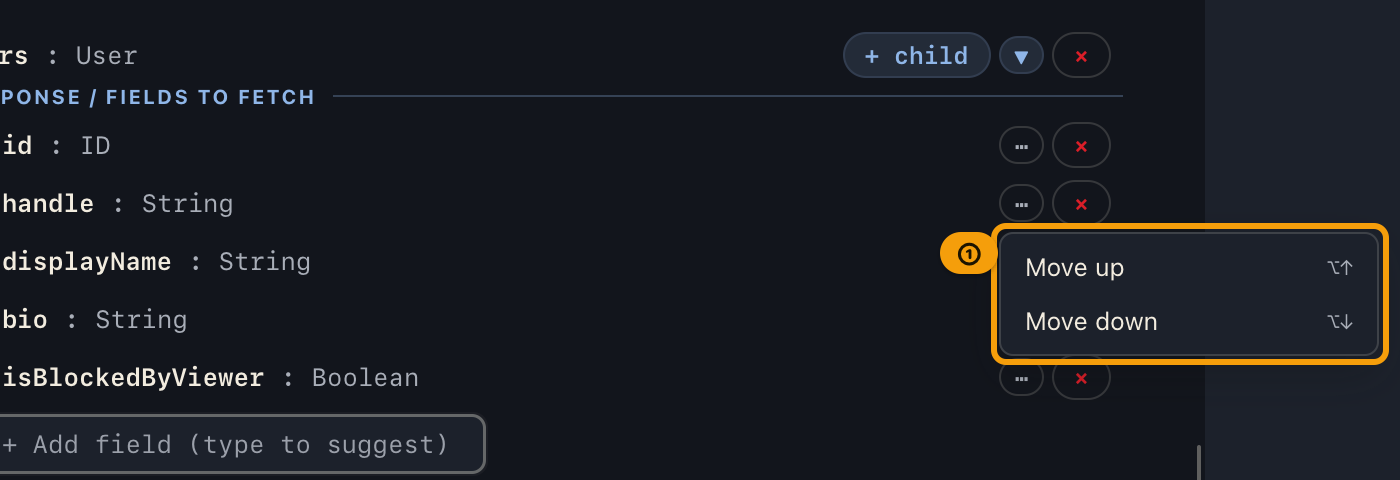
The ⋯ on the right of a row offers "Move up" and "Move down"; they are greyed out on the first and last row. Collections and favorites also offer "Move to folder…", which lists the possible destinations — choosing (Root) moves the item out of its folder.
Rules per place
Query fields
Reordering the fields you built in the query builder changes the order of the lines in the generated query (visible in the PREVIEW below). All three ways — drag and drop, keyboard, and the ⋯ menu — work here.
Fields can only be reordered within the same level. You cannot move a field under a different field (a different level), because it would become a field that does not exist on that type and the query would no longer be valid. Rows at another level turn red.
Collections
You can reorder folders and saved queries. A folder moves together with its contents. Use drag and drop or the ⋯ menu (two ways).
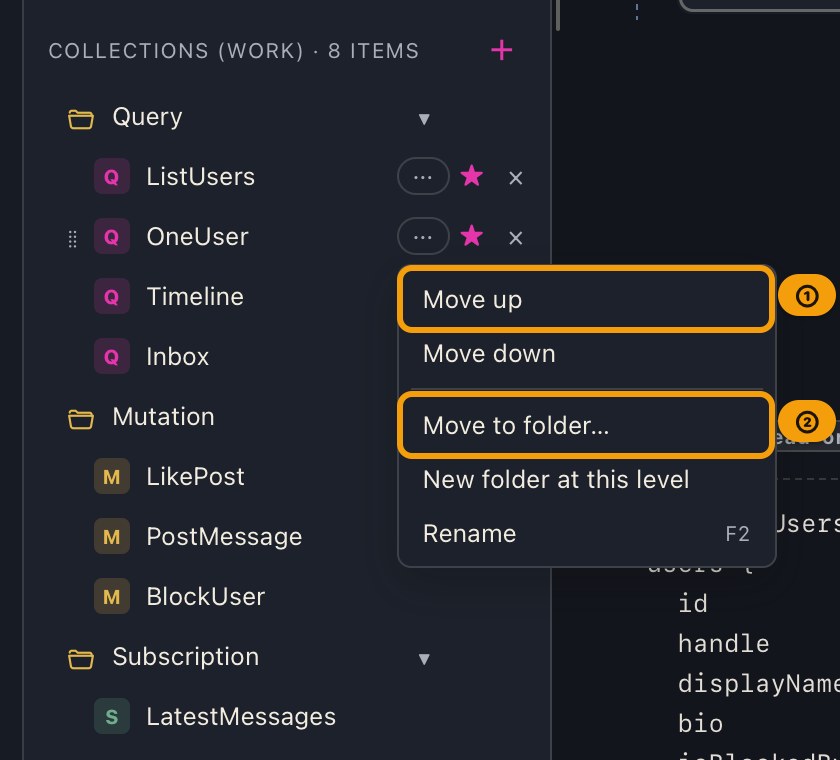
A folder cannot be moved into a folder inside itself, because the nesting would become circular. Those rows turn red too.
Favorites
You can reorder favorite folders and the queries you starred. Queries can move between folders. Use drag and drop or the ⋯ menu (two ways).
- You can move a query out of a folder to the top level of the list. While dragging, a drop area labelled "Drop here to move out of the folder" appears at the bottom of the list.
- Folders and top-level queries share one order, so you can also put a top-level query above a folder.
- Reordering favorites does not change where the query is stored in the collection. Favorites are shortcuts that cut across collections, so they keep their own order.
Environments
Environments can be reordered under "Projects / Environments" in the explorer pane. Use drag and drop or the ⋯ menu (two ways). The environment picker at the top of the window follows the same order.
Environments can only be reordered within the same project (this does not move an environment to another project).
Projects
Projects themselves can also be reordered, from the same explorer pane. Use drag and drop or the ⋯ menu (two ways). Reordering never changes which project or environment is selected, or the contents of any project's collection. Projects sit at the top level of the list, so unlike collections there is no "move inside" — only reordering.
Tips
- In the query builder, the keyboard or
⋯works best for a small nudge; drag and drop works best for a longer move. - In the explorer pane (collections, favorites, environments, projects),
⋯is quicker for a small nudge; drag and drop is faster for a long move. - For moves that require a lot of scrolling, "Move to folder…" in the
⋯menu is more reliable than dragging. - Reordering never changes a query's contents (body, headers, arguments) or its favorite status.
What you cannot do at this point (limitations)
- The explorer pane (collections, favorites, environments, projects) has no keyboard reordering (only drag and drop and the
⋯menu). - Environments cannot be moved to another project (reordering stays within one project).
- Query fields cannot be moved to another level.
- Favorite folders cannot be nested (they are a single level).
When things go wrong
| Symptom | Cause | What to do |
|---|---|---|
| No handle (⣿) appears | The row has nowhere to go: it cannot move up or down, and there is no folder to move it into | A lone project's row, for example, shows no handle. The ⋯ menu still appears, so you can rename from there |
Option (Alt) + ↑ / ↓ does nothing |
This isn't available outside the query builder (collections, favorites, environments, projects) | Use drag and drop, or "Move up" / "Move down" in the ⋯ menu |
| The row turns red and will not drop | You are aiming at another level (query fields), or at a folder inside the one you are moving | Move within the same level — and never drop a folder inside itself |
| The row ends up inside the folder | You dropped on the middle of the folder | Aim at the folder's top or bottom edge, and drop once the line appears |
| "Move up" / "Move down" are greyed out | The row is already first or last in its list | Nothing to do — it is already at the end |
| The order reverts | — | Saving may have failed. If crash reporting is enabled, consider sending a report |
Related documents
- Renaming: Renaming and creating folders
- Building queries: Query Builder
- Registering and switching environments: Environments
- Collection and favorite terminology: Key terms
- Pricing tiers and license management: Plans (Free / Pro) and licenses
- Back to the index: User manual contents