
Plans (Free / Pro) and licenses
This page covers the Free / Pro plan difference, Pro-only features, and how to purchase or cancel.
The in-app plan management modal is authoritative (design D55 / D67). Prices, the feature list, and purchase/cancel flows on screen are the latest user-facing source. This page is a public-manual summary; if anything conflicts, prefer the app UI.
⚠️ How you purchase and cancel depends on your OS. macOS uses an auto-renewable subscription through the Mac App Store. Windows and Linux use a Lemon Squeezy license key. The plan itself (price, features) is the same everywhere, but purchasing, applying, and cancelling work differently. Purchases don't carry over between platforms — Pro bought on Windows or Linux can't be used on the macOS build, and vice versa.
Free vs Pro (overview)
| Free | Pro | |
|---|---|---|
| Number of projects | Unlimited | Unlimited, same as Free |
| Price | $0 | $9.99 / month or $99 / year (about 2 months free on yearly) |
| Features | The core feature set, except what's listed below | The core feature set, plus everything in the table below |
Prices are shown in the app after fetching live pricing. If the network is unavailable, the purchase button is disabled rather than guessing an amount.
Payment goes through Apple's in-app purchase on macOS (Mac App Store build), and through Lemon Squeezy (online payment by credit card, etc.) on Windows and Linux. The Pro feature set and price are the same on both.
Pro-only features
| Feature | What it does | Details |
|---|---|---|
| Request hooks | After sending, extract values into environment variables, or check the status and body | Request hooks |
| Subscription (WebSocket / SSE) | Send Subscription operations and receive live updates | Sending queries |
| Schema diff | A confirmation gate that shows the diff when you re-import a schema | Schema import |
| Third-party collection import | Import a Postman Collection (v2.1, GraphQL) | Project export / import |
| AI assist (Jev) allowance | Use Jev up to about 4.7 million tokens every month (token equivalent); used first even if you have your own API key | AI assist |
| AI assist (Jev) with your own API key | Keep going with your own TypeSafe API key once the allowance runs out (no limit; usage is billed to your own TypeSafe account) | AI assist |
On Free you can view request-hook rules and keep imported ones, but you cannot create, edit, toggle, or
evaluate them on send (the Hooks tab shows a [Pro] badge while you are on Free). This feature list is the
same on every OS.
AI assist (Jev) is available on Pro only. On Free, neither the input nor its Settings section appears, and it cannot be used even with your own TypeSafe API key. On Pro, the Pro allowance is used first, and your own key takes over once the allowance runs out.
There is no project-count limit on either plan. Pricing is not based on how many projects you create.
Prerequisites
- The app is running (see Getting started / installing and launching).
- You have already created at least one project, or are about to create one.
Managing your plan
All plan operations are consolidated into a single plan management screen. You can open it from:
- The project selector menu (top bar) → "Manage plan" in the footer.
- Settings (⚙), below the tabs on the left → "Upgrade to Pro" (when unlicensed) or "License info" (when licensed). The plan management screen opens on top of Settings, and closing it returns you to Settings.
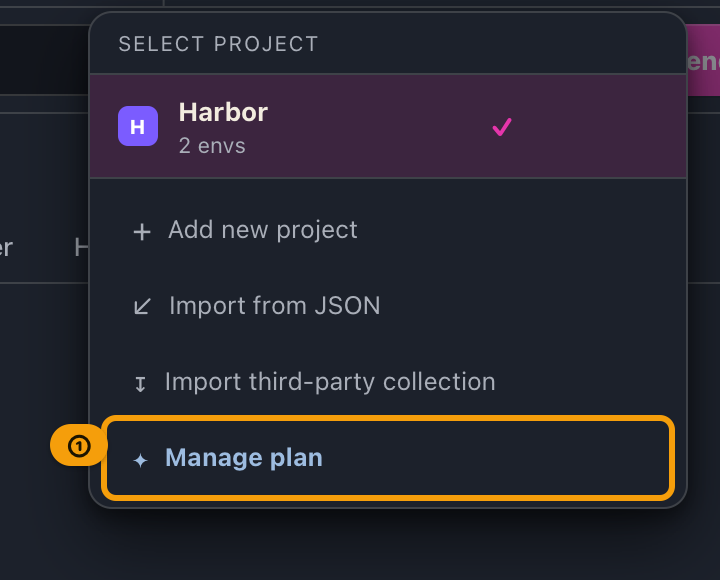
The plan management screen is a single column. What's on it depends on your OS.
Windows / Linux
While on Free (no license):
- A monthly / yearly toggle (yearly shows a “2 months free” style savings badge when applicable).
- Free and Pro cards, showing the live amount for the selected interval.
- A feature list (Pro-only features first, then features available on both plans). When the window is short, the list gets shorter and only the list scrolls; even at the minimum window size (1100×720), the button and the license key field below it stay visible without scrolling the screen. When prices could not be loaded, when an error message is shown, or when you have made the text larger, the whole screen may scroll.
- "Upgrade to Pro (amount)" and a license key field.
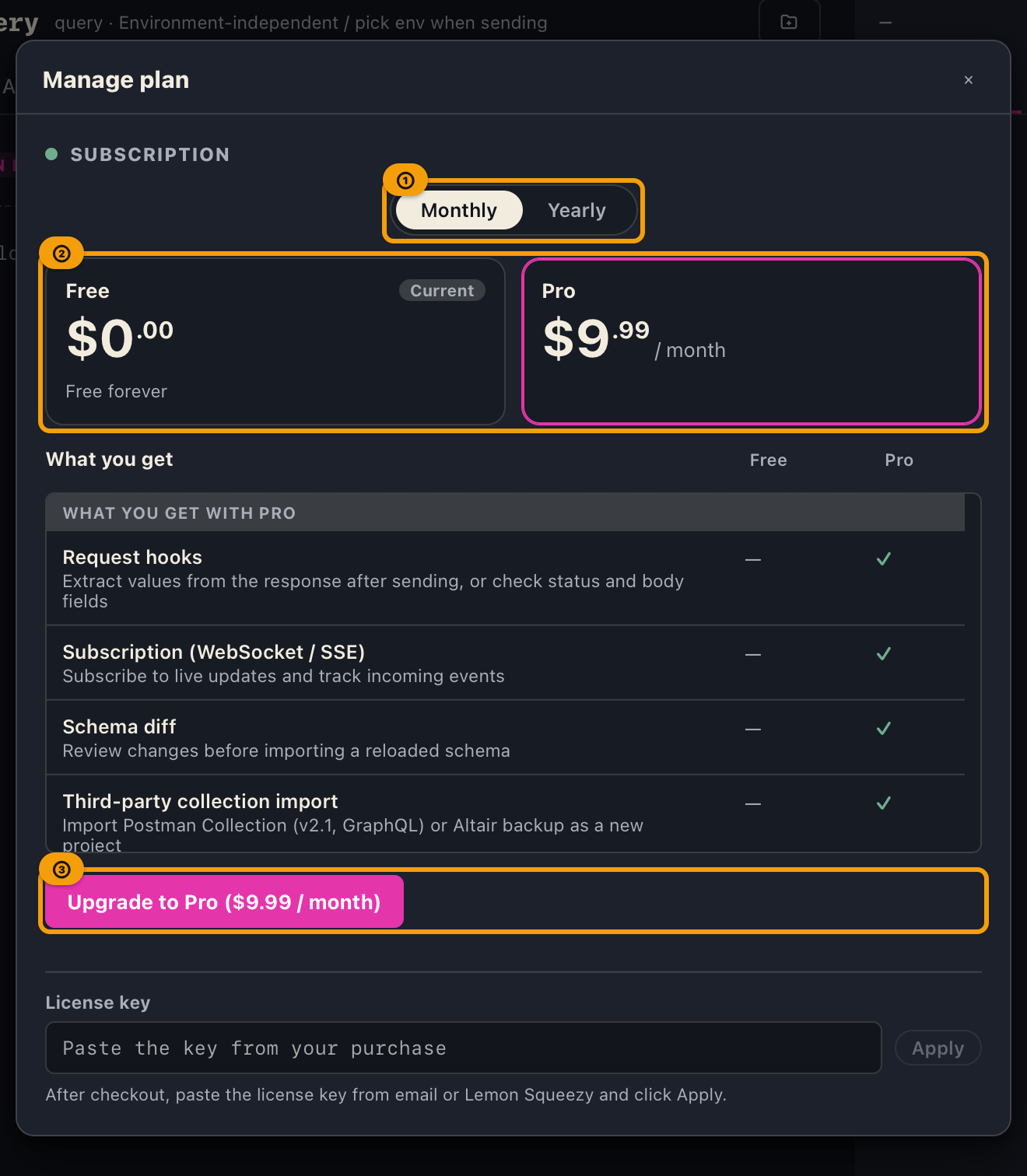
While on Pro (licensed):
- Subscription status (active / cancelled grace), and
- Danger actions: “Deactivate license on this device” and “Cancel subscription” (gift licenses hide cancel).
Pricing is fetched online, so you cannot complete a purchase without a network connection.
macOS (Mac App Store)
While on Free (not subscribed):
- A monthly / yearly toggle.
- Free and Pro cards — the Pro card shows Apple's fully-formatted display price for your storefront and currency.
- A feature list (identical to the Windows / Linux build). When the window is short, the list gets shorter and only the list scrolls; even at the minimum window size (1100×720), the button, the links and "Restore Purchases" below it stay visible without scrolling the screen. When prices could not be loaded, when restoring purchases failed and a message is shown, or when you have made the text larger, the whole screen may scroll.
- An "Upgrade to Pro (amount)" button. There is no license key field on this build.
- Under the button, one line with the subscription's name, length and price (for example "GalleonQL Pro (Monthly) is $9.99 per month and renews automatically until you cancel."; while the price is loading or unavailable, the line leaves the price out), followed by "Terms of Use (EULA)" and "Privacy Policy" links. They open in your default browser.
While on Pro (subscribed):
- Subscription status (next renewal date, or the expiration date if you've cancelled).
- The "Terms of Use (EULA)" and "Privacy Policy" links stay on the screen.
A "Restore Purchases" button is always shown, regardless of plan — use it after switching to a new Mac or reinstalling to bring your purchase back. While on Pro, a "Manage Subscription" button is also shown.
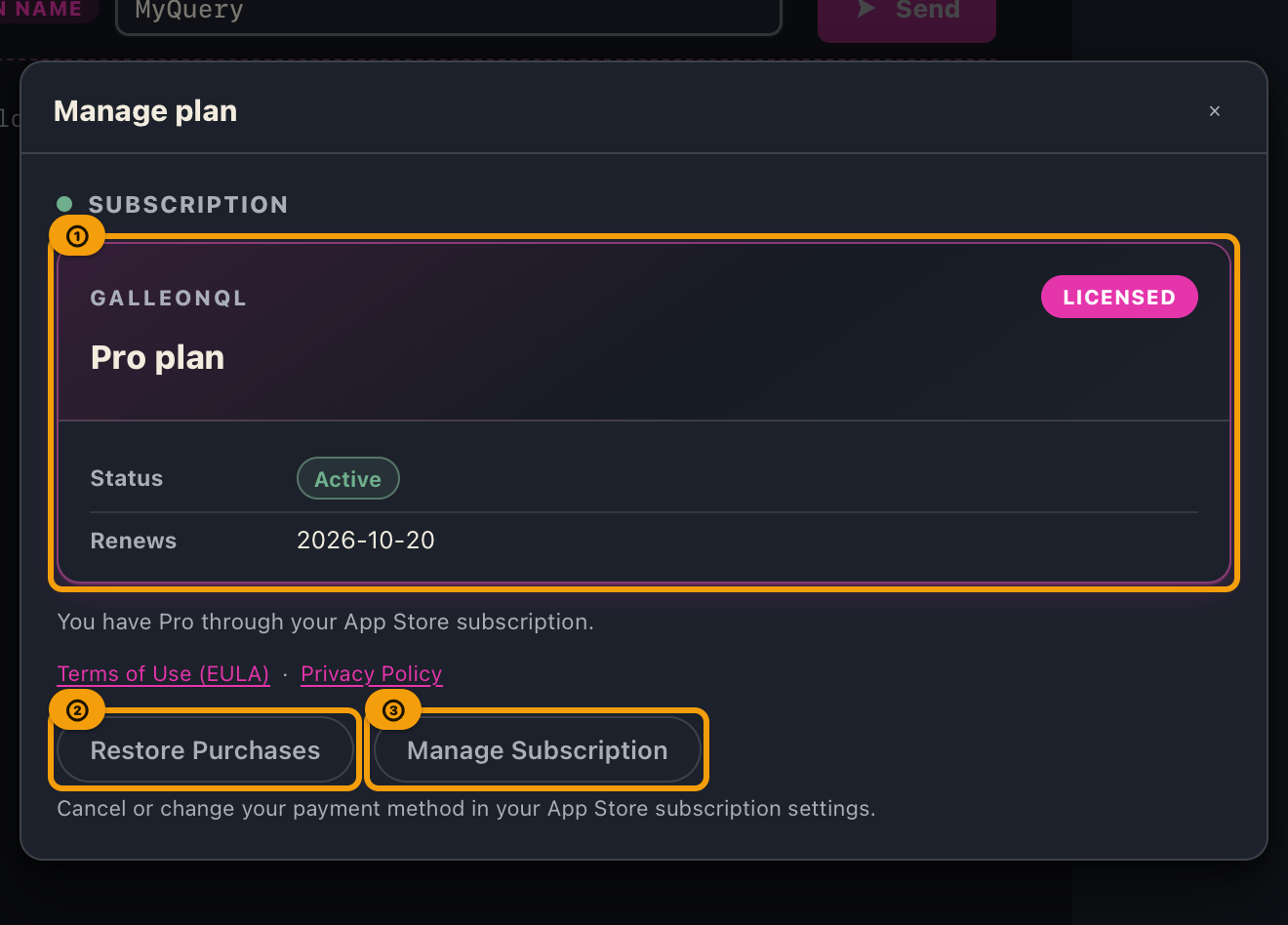
Pricing comes from Apple, so you cannot complete a purchase without a network connection.
The macOS build has no license key field at all. Per App Review Guideline 2.4.5(vi) / 3.1.1, Mac App Store apps can't unlock features with a license key. Purchases and restores are handled entirely by Apple's StoreKit, so no key ever changes hands.
Upgrading to Pro
Pro is a single plan (no quantity picker). The steps differ by OS.
Windows / Linux
- Open plan management and choose monthly or yearly.
- Press "Upgrade to Pro (amount)". Your default browser opens the Lemon Squeezy checkout page. In the app, the button becomes "Processing purchase…" with a spinning icon and stays disabled.
- Complete payment in the browser. The app checks for completion every few seconds and applies the license automatically when it detects the purchase — usually without typing a license key.
- If you cancel before paying, or about 10 minutes pass without detection, you see "Purchase interrupted." Paste the key from email or Lemon Squeezy into the license key field and press Apply.
- If the purchase actually completed after an interruption, restarting the app may still auto-apply the key once at the next startup.
While "Processing purchase…" is shown, the license key field stays usable — you can paste a key as soon as it arrives without waiting for auto-detection.
macOS (Mac App Store)
- Open plan management and choose monthly or yearly.
- Press "Upgrade to Pro (amount)". Apple's purchase sheet opens right there — no browser involved. Confirm with Face ID / Touch ID, or your Apple Account password.
- Once the purchase succeeds, Pro is reflected immediately with no key to type, and you see "Thank you for your purchase. Every Pro feature is now available."
- If the purchase needs approval (for example, Family Sharing's "Ask to Buy"), you see "Your purchase is waiting for approval. Pro turns on as soon as it is approved." Pro is applied automatically once approved.
- If you dismiss the purchase sheet without buying, plan management just returns to where it was — this is not treated as an error.
Applying a license key (Windows / Linux)
This step does not exist on macOS. There's no license key field at all — a purchase takes effect the moment Apple's purchase sheet closes. If you need to bring a purchase back, see "Managing your subscription on macOS."
The license key field is shown when you are unlicensed (including during an in-progress checkout). It is hidden once Pro is already applied.
- Paste the key into the License key field.
- Press Apply. While the key is being checked, the button shows a spinning icon.
- On success, a registration-complete screen appears.
- Invalid, expired, or disabled keys show an error and leave you on Free.
Deactivating a license vs. canceling a subscription (Windows / Linux)
Both end paid access on this device, but billing and timing differ — don't confuse them.
| Action | What it does | Plan on this device | Billing |
|---|---|---|---|
| Deactivate license on this device | Removes the license from this app (and may free the activation on Lemon Squeezy) | Free immediately | Does not stop — the subscription keeps billing |
| Cancel subscription | Cancels via the in-app API (no browser) | Pro until the expiration date, then Free on a later startup | Stops once you confirm the cancellation |
- Deactivate shows a confirmation. Other devices that use the same key are not removed automatically.
- Cancel shows a confirmation with the expiration date. After you cancel, the status becomes cancelled, and both danger actions are hidden during the grace period. Either wait for the expiration date to pass, or deactivate before you cancel if you need Free right away (to actually stop billing, you still need to cancel separately).
- Gift licenses have no subscription to cancel; only deactivate is available.
Managing your subscription on macOS (restore and cancel)
The macOS build has no "deactivate" concept. Instead, there are two actions:
| Action | What it does |
|---|---|
| "Restore Purchases" | Brings a subscription you already own on this Apple Account onto this Mac. Use it after switching devices or reinstalling. You can press it even while already on Pro. While it is restoring, the button shows a spinning icon and "Working… this can take a moment". |
| "Manage Subscription" | Opens the "Subscriptions" screen in the App Store app. Cancellation and payment-method changes happen there — there is no cancel button inside GalleonQL itself. |
- If "Restore Purchases" doesn't find anything to restore, you see "No purchase to restore was found." (not an error). This usually means you're signed in with a different Apple Account, or you haven't purchased yet.
- Cancellation always happens in the App Store app, not in GalleonQL's plan management screen. "Manage Subscription" opens that screen for you automatically. After cancelling, you keep Pro until the expiration date, then it reverts to Free automatically (the same end-of-period grace as Windows / Linux).
License check at startup
While on Pro, GalleonQL verifies your subscription on every startup. How it does this depends on your OS.
Windows / Linux
- Valid (active, or cancelled but before the expiration date): Pro stays.
- Lapsed (expired, disabled, and so on): the app returns to Free and removes the key from this device. However long you paid for (monthly or yearly), once the license expires you're on Free. Projects are not locked — Free still has unlimited projects. The reason is shown once (table below).
- Offline startup: a previously valid license can be kept temporarily for up to 24 hours after the last successful online check, and only while still within its validity period (GalleonQL shows "Cannot verify license" and checks again after 1 minute, then 5 minutes, then 15 minutes; the notice goes away once the network is back). Otherwise (more than 24 hours passed, the license expired, the clock is set earlier than the last check, or this device has no record of a check), you return to Free and the key is removed. Enter the key again while online to check it again.
- While the app is running: GalleonQL checks again when the expiration date passes and when 6 hours have passed since the last check, the same way as at startup (the result and the messages are the same). While your computer is asleep it can't check, so it checks within about a minute after waking or when the GalleonQL window comes to the front again. Closing the window quits GalleonQL, so the next startup checks.
- When more than 24 hours have passed since the last check and the server can't be reached (at startup or while the app is running): the key isn't removed right away. GalleonQL shows "Cannot verify license" and checks again after 1 minute, then 5 minutes, then 15 minutes, and removes the key only if it still can't check (so it doesn't remove the key when you start the app at login or right after waking, before the network is back). If the expiration date is known to have passed, the key is removed right away.
- If this key was confirmed online before but the server now says it isn't a valid key, the key isn't removed right away: like an offline startup, the license is kept for up to 24 hours after the last successful check (so a temporary problem on the server doesn't remove a valid key).
When the key is removed, the reason is shown once in a banner. After the key is removed there is no startup check, so the same message doesn't repeat. Entering a key again clears this banner.
| Message | When |
|---|---|
| "The license key had expired, so it was removed from this device." | The online check reports the key as expired |
| "The subscription had been cancelled and, by this device's clock, the license had expired, so it was removed from this device." | The online check reports the subscription as cancelled and, by this device's clock, the expiration had passed |
| "The gift license had expired, so it was removed from this device." | A gift license has expired |
| "This license key had been disabled, so it was removed from this device." | The key was disabled, for example after a refund |
| "This license key wasn't accepted as a valid key, so it was removed from this device." | The key wasn't accepted as valid, for example because it doesn't exist |
| "The license couldn't be checked online, so it was removed from this device. Enter the key again while online to check it again." | An offline startup that doesn't meet the conditions above (it doesn't mention hours or expiry) |
| "The license was removed from this device." | The reason can't be stated for sure (for example, the subscription is cancelled but its expiration date is unknown) |
macOS (Mac App Store)
- On every startup, the app asks StoreKit (Apple) for your current subscription status. While the app is running, it also checks again when the expiration date passes and when 6 hours have passed since the last check (the same interval as Windows / Linux; these checks never ask you to sign in).
- Valid (subscribed, or cancelled but before the expiration date): Pro stays. If you're not subscribed, you're on Free.
- If a payment fails (for example, your card expired): you stay on Pro during the grace period while Apple retries the charge. Plan management shows the day the grace period ends as "Valid until". If you fix your payment method in the App Store during that time, the subscription renews; if not, you return to Free at the first check after the grace period ends. If the status can't be checked (for example, you're offline), your current state is kept, as described in "If the check fails" below.
- If the check fails (for example, you're offline): your current state is kept as-is, and you see a "Can't verify your license" notice. However, if the expiration date is known (for example, after cancelling) and it has passed by this Mac's clock, you return to Free. There is no Windows/Linux-style "fall back to Free after 24 hours" timer. The next successful check (at startup or while the app is running), once you're back online, updates the state and clears the notice.
Example (macOS)
| Situation | Action | Result |
|---|---|---|
| You're on Free in plan management and press "Upgrade to Pro (monthly, $9.99)" | Confirm in Apple's purchase sheet with Face ID / Touch ID, or your password | The purchase succeeds, Pro is reflected immediately with no key to type, and "Thank you for your purchase" appears |
| You switched to a new Mac, or reinstalled the app | Press "Restore Purchases" in plan management | If the same Apple Account has an active purchase, you see "Your purchase has been restored. You now have Pro access." and Pro is applied. If not, you see "No purchase to restore was found." |
| Pro shows up late right after you buy | Wait | "Confirming your purchase…" is shown while the app checks again every few seconds. If Pro turns on you see the thank-you screen; if it still cannot be confirmed you see "We could not confirm your purchase yet." (the app does not call it a success or a failure) |
| You want to cancel your active subscription | Press "Manage Subscription" in plan management | The App Store app's "Subscriptions" screen opens. Cancelling there keeps Pro until the expiration date, then you return to Free automatically on the next startup |
Expected results
- The plan itself (price, features) is the same regardless of OS. Only purchasing and cancelling differ.
- On macOS, purchasing never leaves the app — it happens inside Apple's purchase sheet — and Pro is reflected the moment the purchase succeeds.
- Pressing "Restore Purchases" on macOS brings back any active purchase tied to the same Apple Account automatically.
- On macOS, cancellation always happens in the App Store app; GalleonQL has no cancel button of its own.
Troubleshooting
Windows / Linux
| Situation | Likely cause | What to do |
|---|---|---|
| Purchase button disabled / pricing unavailable | Network or pricing API failure | Check your connection, press retry if it's shown, or reopen plan management |
| “Purchase interrupted” after paying | Auto-detect timed out or was cancelled | Paste the key from your email or Lemon Squeezy and press Apply; or just restart once — the app may pick it up automatically at startup |
| Cancelled but still on Pro | Grace until the expiration date | Restart after the expiration date; or, if you need Free right now, deactivate before cancelling (billing still needs a separate cancel) |
| Deactivated but still billed | Deactivating doesn't stop Lemon Squeezy billing | Use Cancel subscription while still licensed — before or after re-applying the key on a device where you can cancel |
| Pro features blocked after cancel grace ends | Plan is Free again | Upgrade to Pro again if you need those features back |
macOS
| Situation | Likely cause | What to do |
|---|---|---|
| Purchase button disabled / pricing unavailable | Network or App Store connectivity failure | Check connectivity and reopen plan management |
| The purchase sheet shows an error and you can't complete a purchase | Not signed in to an Apple Account, or no payment method on file | Check your Apple Account sign-in status and payment method in System Settings |
| "Restore Purchases" doesn't bring back Pro | Purchased with a different Apple Account, or never purchased | Confirm you're signed in with the Apple Account you purchased with |
| "Manage Subscription" doesn't open anything | The App Store app couldn't be opened | Open the App Store app manually and go to your account name → "Subscriptions" |
| Still on Pro after cancelling | Pro continues until the expiration date (end-of-period grace) | Wait until the expiration date passes — the app reverts to Free automatically on the next startup |
| You didn't cancel, but you see "Valid until" instead of "Renews" | A payment failed and you're in the grace period | Fix your payment method in your App Store account. Once it's fixed, the next check shows "Renews" again |
| "Confirming your purchase…" is followed by "We could not confirm your purchase yet" | The purchase was accepted but Pro has not shown up yet (a delay) | Press "Restore Purchases" in a moment. If the payment went through, Pro turns on |
| "We could not verify your purchase" | The purchase Apple returned could not be verified. Your payment may have gone through | Press "Restore Purchases". If Pro still does not turn on, confirm you're signed in with the Apple Account you purchased with |
| Right after purchasing, no renewal date is shown | The purchase went through, but re-reading your subscription status right after it didn't | Reopen plan management or restart the app, and the date appears |
See also Key terms and the table of contents.