
Exporting / Importing a Project
This page explains how to write a project out to a JSON file (export) and read one back in (import).
Overview
GalleonQL lets you write the contents of a project out to a single JSON file, or read a project back in from such a file. This is useful for:
- Backup: keep an important project saved as a file
- Sharing: hand a project to your team or someone else (e.g. via Git)
- Portability: move a project to another machine
Here, a "project" includes its shared headers and shared variables, its environments (connection profiles), and its collection tree (folders, requests, and favorites). For details on the terms, see Key terms.
Prerequisites
- The desktop app is running (this uses your OS file dialog).
- You perform these steps from the project selector menu in the top bar (not from inside the project edit drawer).
What is and isn't included
An exported file includes / excludes the following.
| Included | Not included |
|---|---|
| Project name, color, shared headers, and shared variables | Auth secrets (Bearer tokens, Basic passwords, etc.) |
| Environment name, color, request URL, variables, headers, and auth method (not the secret) | Request history |
| The collection tree (folders, requests, favorites) | Drafts of currently open tabs |
| Request auth: whether it's enabled, and the method (not the secret) | Schema cache |
| HTTP timeout settings (project default, per-environment override — included if set) | Request hooks (all Hooks-tab rules; stored separately, outside the export. See Request hooks) |
⚠️ Auth tokens and passwords are not written to the file. This is by design, so that you don't accidentally share your secrets. After importing, re-enter your token and other secrets under the environment's "Auth" settings.
Steps
Export (write out a specific project)
- Click the project name in the top bar to open the project selector menu.
- Press the ↗ (Export this project) button on the right of the project row you want to write out.
- In the OS save dialog, choose the destination and file name (the default file name is
ProjectName.galleonql.json). - A success message appears at the bottom of the menu (it notes that auth secrets are not included).
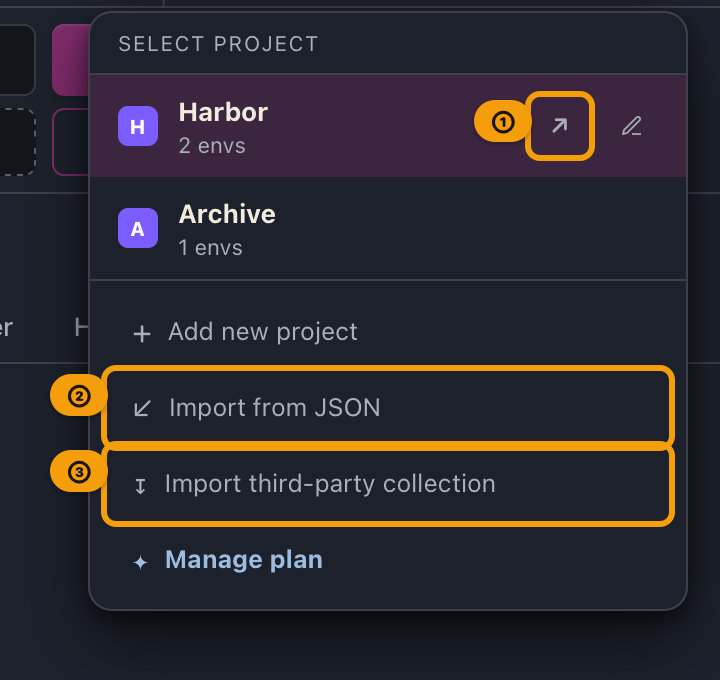
The pencil (✎ Edit this project) button is for editing the name, color, shared variables, and so on. It is a separate operation from export.
Import (read in as a new project)
You can import from the same menu even when you have no projects at all.
- Click the project name in the top bar to open the project selector menu.
- Press Import from JSON at the bottom of the menu.
- In the OS file picker, choose the
.jsonfile to read in. - The file is validated and (if needed) its format is converted, then it is added as a new project.
- The newly added project becomes selected. Follow the notice and re-enter your auth secrets if needed.
Import a third-party collection (Pro)
On the Pro plan, you can import a Postman Collection (v2.1, GraphQL requests) as a new project. This is a separate entry point from Import from JSON (native GalleonQL project files).
Prerequisites
- You are on the Pro plan (on Free, the file picker does not open; a Pro upgrade prompt is shown)
- The desktop app is running
- The file is a Postman Collection v2.1 that contains at least one GraphQL request
Steps
- Click the project name in the top bar to open the project selector menu.
- Press Import third-party collection at the bottom of the menu.
- In the OS file picker, choose a Postman
.jsonfile. - If there is at least one GraphQL request, it is added as a new project.
- The success message shows imported and skipped counts. Reconfigure tokens on environments as prompted.
Example input
Export a Postman collection as Collection v2.1 .json.
It must include at least one GraphQL request (body.mode is graphql). Example (skeleton):
  {
  "info": {
    "name": "My API",
    "schema": "https://schema.getpostman.com/json/collection/v2.1.0/collection.json"
  },
  "item": [
    {
      "name": "Get viewer",
      "request": {
        "method": "POST",
        "header": [
          { "key": "Content-Type", "value": "application/json" },
          { "key": "Authorization", "value": "Bearer secret-token" }
        ],
        "url": "https://api.example.com/graphql",
        "body": {
          "mode": "graphql",
          "graphql": {
            "query": "query Viewer { viewer { id name } }",
            "variables": "{}"
          }
        }
      }
    }
  ],
  "variable": [
    { "key": "baseUrl", "value": "https://api.example.com" },
    { "key": "access_token", "value": "do-not-import" }
  ]
}
REST-only collections and Insomnia / Bruno exports are not supported yet.
Expected result
- A new project is added and selected (if the name already exists, it is renamed like
Name (2)) - Example message:
Imported “My API” (1 GraphQL / 0 skipped). Known credential keys (Authorization, Cookie, *token*, etc.) are stripped best-effort; reconfigure tokens on environments. - Skipped examples: REST-only requests, queries that use fragments, queries with field aliases
- Best-effort secret stripping examples (exact key match, or names ending with
token/secret/password/apikey, etc.): headers such asAuthorization/Cookie, variables such asaccess_token/myToken. Not every secret is guaranteed to be removed (e.g. an arbitrary key named onlycred). Review environment auth and variables after import
On Free, pressing the button shows a Pro upgrade prompt. For native GalleonQL project JSON, keep using Import from JSON (available on Free).
Key points
Import always adds a new project. It never overwrites an existing project. If a project with the same name already exists, it is renamed with a parenthesized number, such as
ProjectName (2).↗ (Export) is always available for every project. You can rescue a project's data as JSON at any time — even one you can no longer select and use because it's over your plan's project-slot limit. For plans and licenses, see Plans (Free / Pro) and licenses.
Favorites (★) are preserved as the favorite state of requests and are restored after import.
The imported schema (cache) is not included. An imported project is always treated as a brand-new project, so even when its environment points at the same endpoint URL as the original, that project starts from "Not loaded yet". Run "⟳ Load" again on the environments you need (see Schema Import).
If the file's format is newer or older, here's what happens.
File format Behavior Newer than the app you're using Import is canceled, and you're asked to update the app Older than the app you're using Automatically converted to the current format, with any missing items filled in using defaults Same as current Imported as-is, with no conversion
Troubleshooting
| Symptom | What to do |
|---|---|
| "Please update the app" is shown | The file uses a newer format. Update the app, then try importing again |
| "Unsupported format" is shown | Check that the file is a project JSON exported by GalleonQL (for third-party files, use Import third-party collection) |
| "Could not read the file as JSON" / "Could not parse the file as JSON" | Check that the file isn't corrupted (you can test by opening it in a text editor) |
| You canceled the dialog | Nothing happens — no error is shown either |
| Sending after import gives an auth error | Auth secrets aren't included in exports (and third-party imports strip known secret keys on a best-effort basis). This is expected — re-enter your tokens under the environment's "Auth" settings |
| Free plan: Pro prompt when pressing Import third-party collection | Expected. Upgrade to Pro, or use Import from JSON for native GalleonQL files |
| "This is a GalleonQL project JSON. Use “Import from JSON” instead." | You pointed the third-party importer at a native GalleonQL file. Use Import from JSON instead |
| "Unsupported file format. Only Postman Collection v2.1 (GraphQL)…" | Only Postman Collection v2.1 GraphQL is supported for third-party import |
| "No GraphQL requests found" | The collection has no importable GraphQL (e.g. REST-only) |
| Success but a high skip count | REST-only requests, queries that use fragments, and queries with field aliases are skipped; counts appear in the success message |
Related documents
- Basics of projects, environments, and collections: Registering and switching environments (connection profiles)
- HTTP timeout configuration: the "Setting HTTP timeouts" section in Registering and switching environments
- Pricing tiers and license management: Plans (Free / Pro) and licenses
- Term definitions: Key terms
- Manual index: GalleonQL User Manual