
Overview and Features
A one-page tour of what GalleonQL does and where everything lives on screen. If this is your first time opening the app, start here.
What GalleonQL Is (overview)
GalleonQL is an API client built specifically for GraphQL. You import a schema (the definitions of types and fields) from the endpoint you want to talk to, build a query while reading that schema as documentation, and send it to whichever endpoint you have selected — all in a single window.
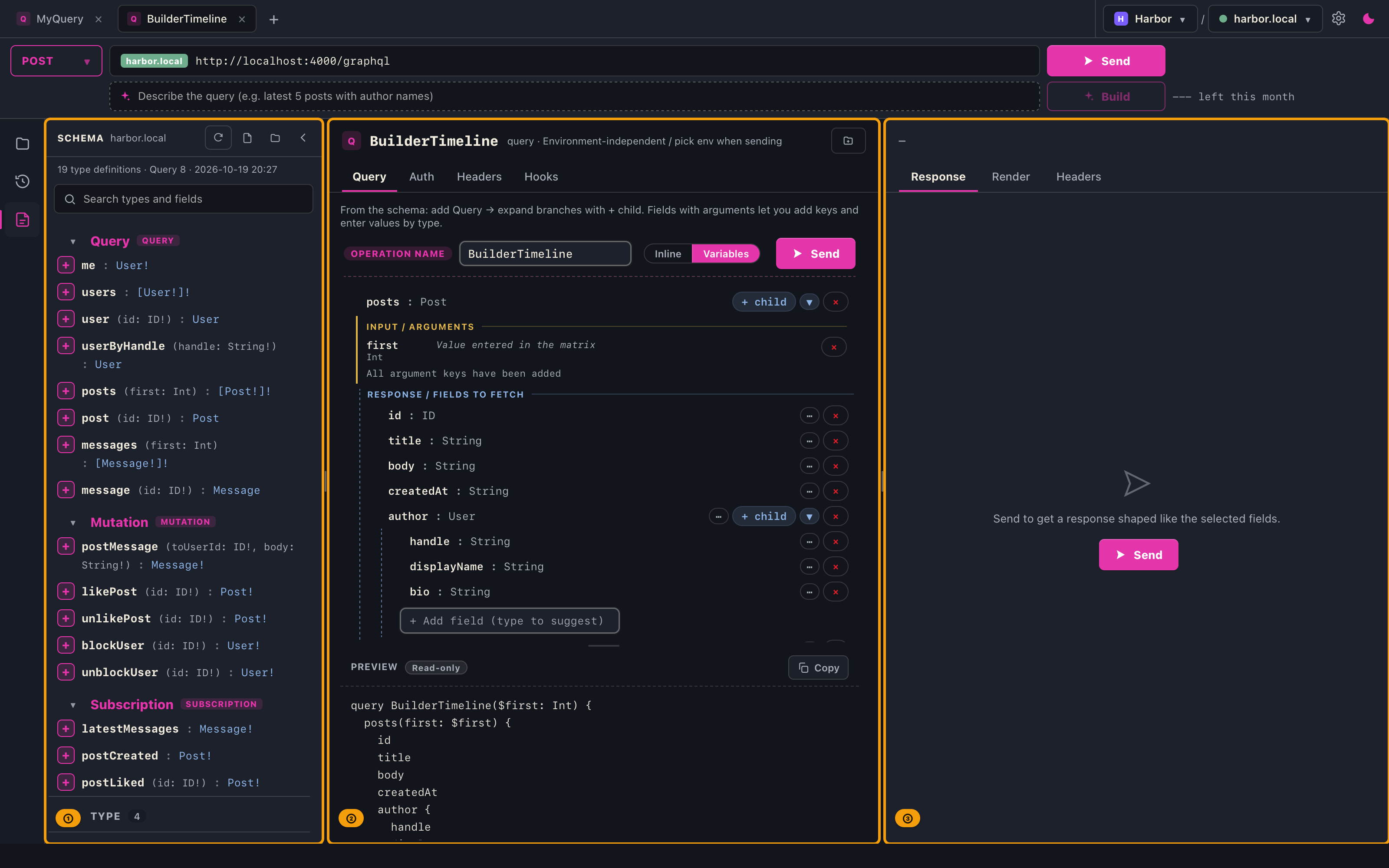
The window is divided into three areas side by side. Once you know which area does what, every other page in this manual is just a matter of following its steps.
Prerequisites
- GalleonQL is installed and launches (What GalleonQL Is / Installation and Launch).
- You know the URL of the GraphQL endpoint you want to reach — plus a token or other secret if it needs authentication.
- Words like "environment", "collection", and "leaf and branch" are collected in Key Terms. Look anything unfamiliar up there as you go.
The Three Areas
| Area | Where | What you do there |
|---|---|---|
| ① Left panel | Left (the rail at the far left switches what it shows) | "Collections": switch projects and environments; open saved queries and favorites. "Request history": past sends. "Schema": the type catalog of the imported schema — insert fields into your query from here |
| ② Request | Right of the left panel (beside or above the response) | Build the query; set request-specific headers, authentication, and hooks |
| ③ Response | Right of the request (or below it) | See the send status (HTTP status, elapsed time, and so on), the response body, and the headers received and sent |
The left panel shows one thing at a time. When the app starts, it shows the schema. You can drag the dividers to resize the areas (as far as the request and response can still show their contents without cutting them off), and the settings (gear) let you choose a different arrangement, such as a left/right or a top/bottom split.
Steps
1. Choose where and how to send, on the top bar
Everything that affects sending is gathered at the top of the window. The second row (the URL row) holds just four things, from left to right: the HTTP method, a badge with the environment's name, the URL, and the send button. The project and environment selectors sit at the right end of the first row. On Pro, an AI assist input row appears below the second row (AI Assist). The figure below lets you switch between Free and Pro (arrows, dots, or the left and right arrow keys).



- ① HTTP method — choose from POST, GET, UPDATE, and DELETE. POST is the default. For how each one is sent, see Sending Queries and Reading Responses.
- ② Request URL — the URL of the selected environment, shown with its environment variables (such as
{{baseUrl}}) already resolved. This field is read-only; to change the URL, open the environment editor (Registering and Switching Environments). - ③ Send — sends the query you are building to the URL in ②. It sits right next to ②. The result of the send (HTTP status and elapsed time) appears on the header line of the response pane.
- ④ Project and environment — the project on the left, the environment (the endpoint) on the right. Switching the environment immediately swaps both the URL in ② and the headers that will be sent.
2. Open projects and environments in the left panel
The narrow rail on the far left chooses what the left panel shows: Collections, Request history, or Schema. Pressing the button for what is already showing closes the left panel. To open projects and environments, press "Collections" (the app starts with the schema showing).
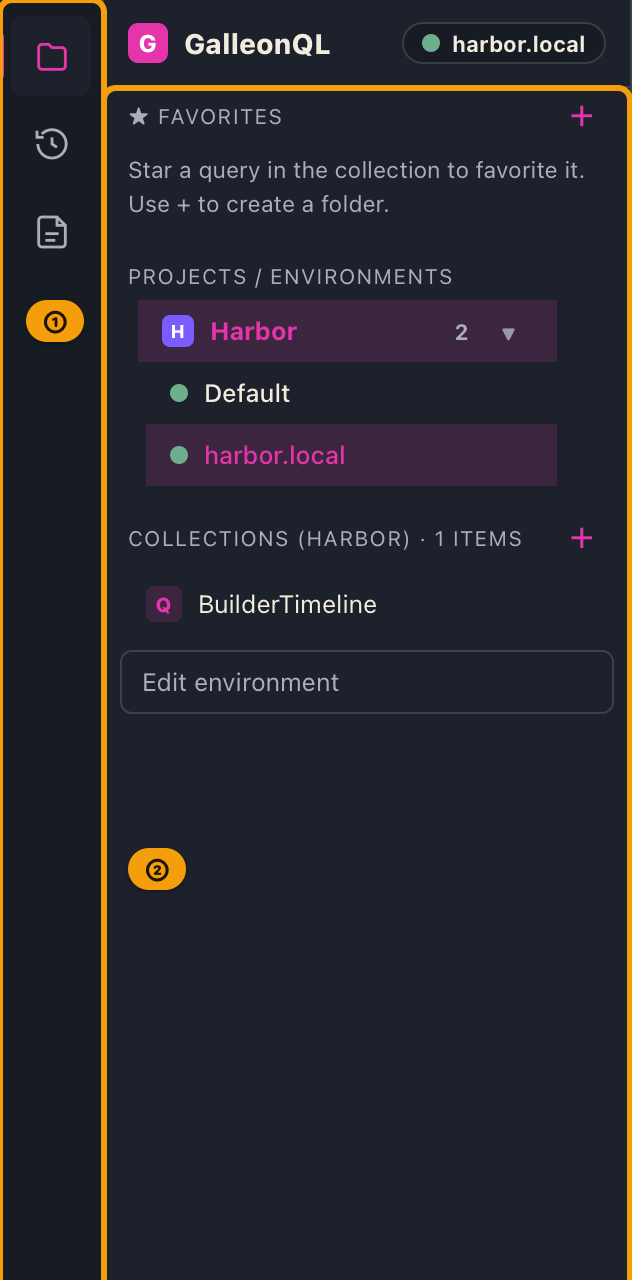
A project is a unit of work; environments (endpoints) and collections (saved queries) hang beneath it. Queries do not belong to an environment. That means you can keep one query open and simply switch environments to send it to your development endpoint and then to staging. For reordering and renaming, see Reordering and Moving and Renaming and Creating Folders.
3. Find a field in the schema panel
Press "Schema" on the rail and the left panel lists the type catalog of the schema you imported (the schema panel). While the schema is showing, your collections are hidden; press "Collections" on the rail to go back.
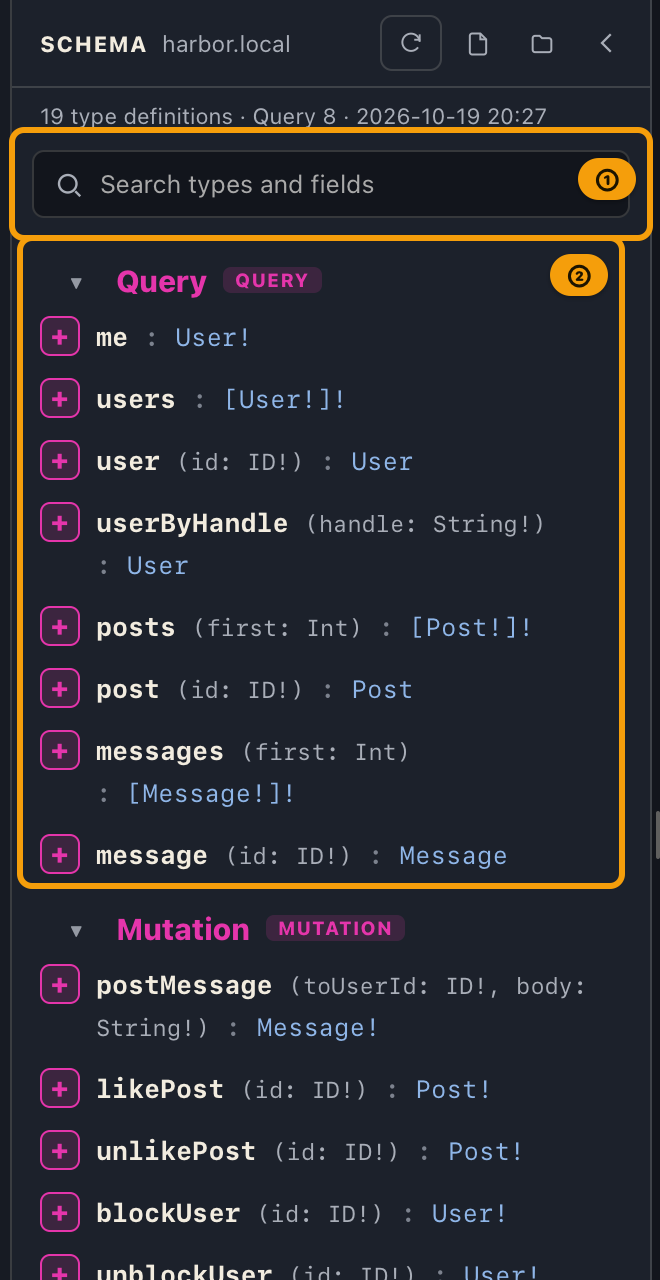
- ① Search — type part of a type or field name and the list narrows to what matches.
- ② Field list — Query, then Mutation, then Subscription. The
+at the left end of a row opens a new tab with that field as its root.
The schema panel takes the same spot on the left as your collections, so you can keep it open while you build a query. Building a query never closes it automatically. It closes only when you press "Schema" on the rail again or press the close button (the left-pointing arrow) in the panel's header.
If nothing is listed yet, import a schema first (Importing a Schema). How to read the types is covered in Browsing the Schema Documentation.
4. Build the query in the request pane and send it
The request pane is where a query is assembled.
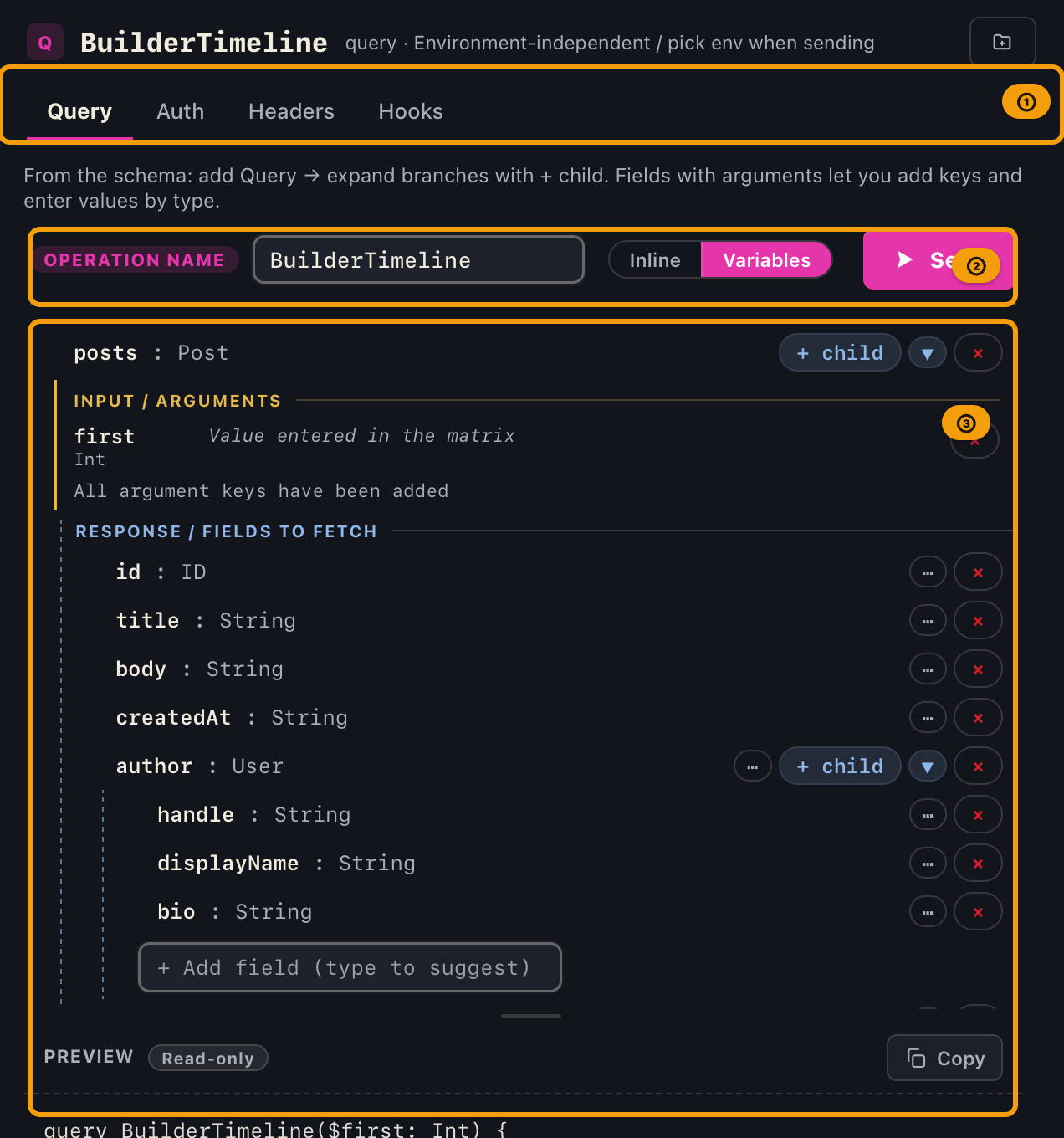
- ① Tabs — Query builds the query, Auth picks the authentication method, Headers holds headers specific to this request, and Hooks configures what happens after a send (Pro).
- ② Operation name and input mode — the name of the generated GraphQL operation, and whether arguments are written straight into the query body (Inline) or turned into GraphQL variables (Variables).
- ③ Tree — each
+ childextends the query one level deeper. The query being generated is previewed underneath at all times.
For how to assemble a query see Query Builder; for how to read what comes back see Sending Queries and Reading Responses.
5. Pick the page to read next
Work backwards from what you want to do.
| What you want to do | Page to read |
|---|---|
| Register or switch an endpoint | Registering and Switching Environments |
| Import or refresh a schema | Importing a Schema |
| Build a query | Query Builder |
| Read a result or an error | Sending Queries and Reading Responses |
| Extract or assert values after a send (Pro) | Request hooks (extract and assert) |
| Move your work to another machine | Exporting / Importing Projects |
| Compare Free and Pro | Plans (Free / Pro) and licenses |
What Sets GalleonQL Apart
| Feature | What it means |
|---|---|
| Environments are not parents of queries | An environment is a switchable connection profile. Because queries do not belong to one, you never have to duplicate a query per environment |
| Queries are assembled, not typed | You extend a query by pressing + while reading the schema, so you do not have to remember field names |
| Headers are layered | Project, then environment, then authentication, then request — later layers win on the same name, and you can review the final result before sending |
| Secrets stay out of exports | Auth tokens and passwords are never written into an export, so they cannot leak by accident |
| Two kinds of variables, kept apart | Values that differ per endpoint are environment variables ({{baseUrl}}); a query's arguments are GraphQL variables ($id) |
When Things Go Wrong
| Symptom | Likely cause | What to do |
|---|---|---|
| The schema panel is empty | No schema has been imported yet | Import one by following Importing a Schema |
| The schema is nowhere to be seen | The left panel is showing collections or history, or it is closed | Press "Schema" on the rail |
| The environment selector cannot be opened | There are no environments | Add one in Registering and Switching Environments |
| Sending does nothing | The query is empty (no roots) | Press + on a field in the schema panel to add one |
| The areas are sized oddly | A divider was dragged | Drag it back, or choose a different arrangement in the settings (gear) |
Related Documents
- Installing and first launch: What GalleonQL Is / Installation and Launch
- Terminology: Key Terms
- Reporting problems: Crash Reporting / Usage Analytics
- Back to the index: User manual contents