
Crash / Error Reporting
This page explains how to use the feature that sends diagnostic information to the developer — with your consent — when the app stops unexpectedly or an error occurs while rendering the UI.
Overview
GalleonQL has a "crash reporting" feature that can send details to the developer when the app stops unexpectedly or an error occurs while rendering the UI. Keep these three points in mind:
- This feature is disabled (OFF) by default.
- Even when it's enabled, a dialog showing the full content to be sent appears every time before sending. Nothing is sent automatically.
- The destination is a private channel that only the developer can view; it is never made public or shared with third parties.
Prerequisites
- The app is running (see Getting started / installing and launching).
What crash reporting is
If GalleonQL stops unexpectedly, or an error occurs while rendering the UI, GalleonQL temporarily saves the details on your device. You always decide whether to send them. Even with the setting enabled, a dialog showing the full content to be sent appears every time before sending.
Steps
1. Enable / disable crash reporting in Settings
- Open Settings (⚙) in the top bar and choose the Privacy tab on the left.
- In the "Crash reporting" section, toggle it on / off with the "Send crash reports" checkbox. The default is OFF. Right below it is a "Usage analytics" toggle (Usage Analytics) as well, but it is a separate consent — toggling one has no effect on the other.
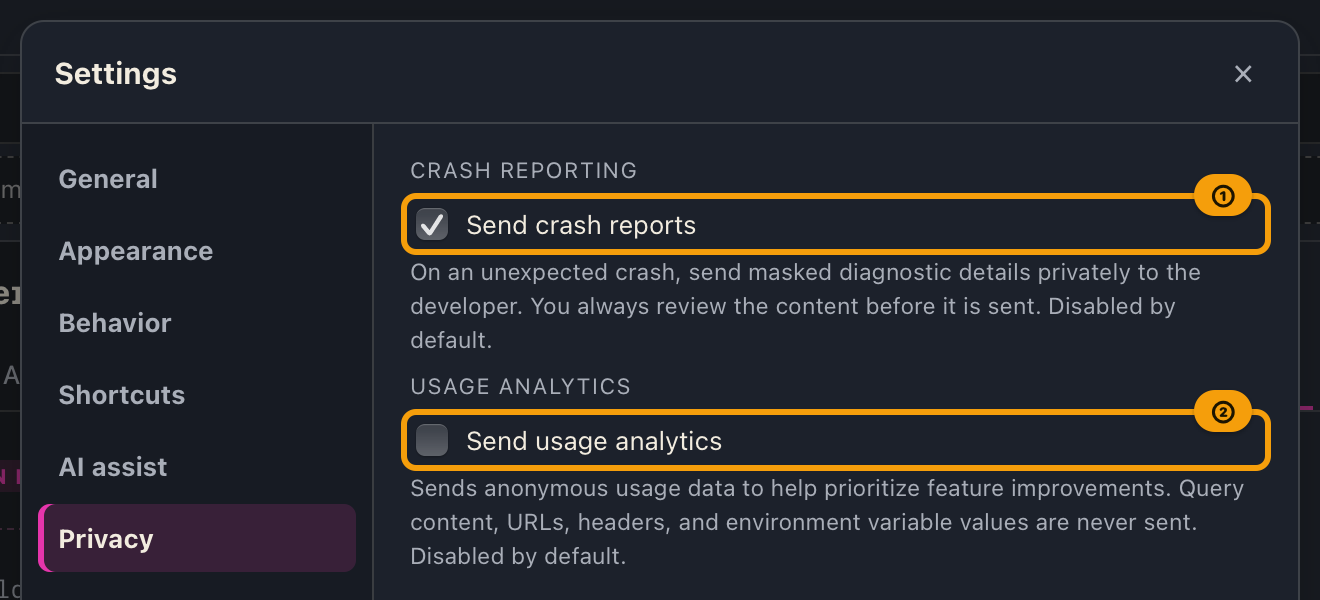
While the checkbox is unchecked, crashes themselves are still detected and temporarily saved on your device, but nothing is ever sent without your confirmation.
2. The notice shown on the next launch after a crash
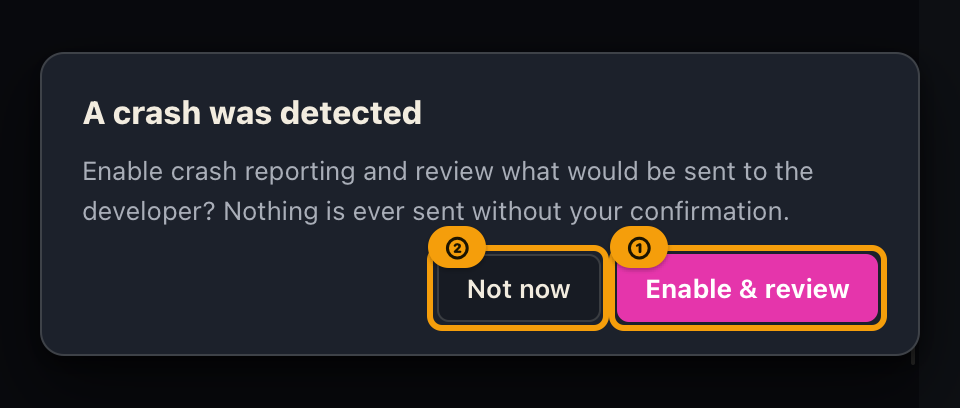
After GalleonQL stops unexpectedly, the next time you launch the app, one of the following is shown depending on the saved content and your setting.
| Situation | Screen shown |
|---|---|
| Setting is OFF and you haven't seen this notice yet | A light notice that a crash was detected, with "Enable & review" / "Not now" buttons |
| Setting is OFF and you've already seen this notice | Nothing is shown — the saved content is kept, but you won't be prompted again until you turn the setting back ON |
| Setting is ON | A confirmation dialog appears every time, showing the full content to be sent |
Choosing "Enable & review" turns the setting ON and proceeds directly to the confirmation dialog for the content
to be sent. Choosing "Not now" does nothing this time, and this light notice will no longer appear from then on
(nothing is sent). This notice does not close with Esc or a click outside it; please choose one of the buttons.
3. Review the content in the pre-send confirmation dialog
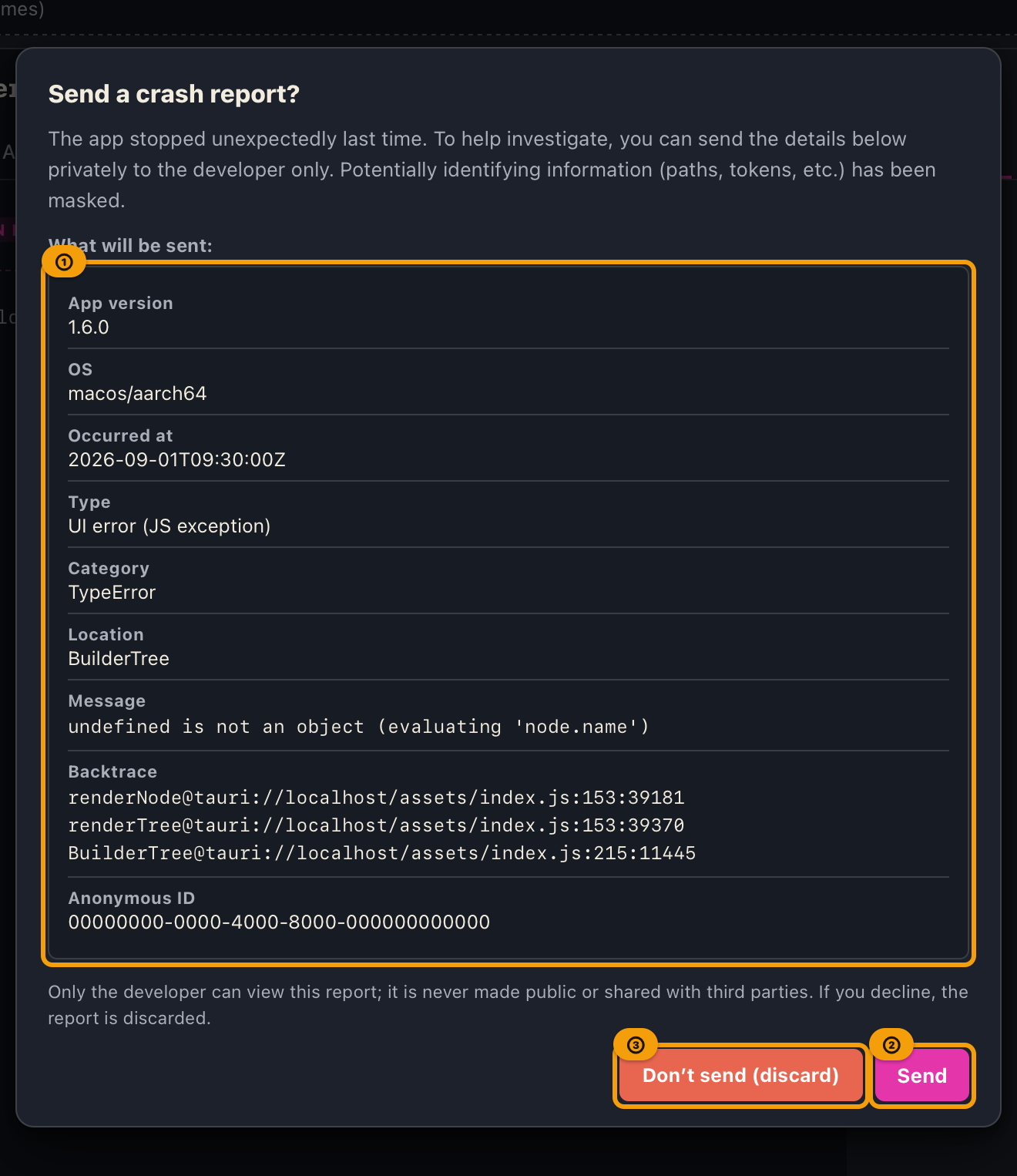
The confirmation dialog shows every item to be sent.
| Item | Content |
|---|---|
| App version | The GalleonQL version |
| OS | The operating system and CPU architecture the app is running on |
| Occurred at | The date and time of the crash or error |
| Type | "App crash" or "UI error" |
| Category (if any) | A short category for the error |
| Location (if any) | File name, line number, and other locators |
| Message | The full error message |
| Backtrace (if any) | The complete stack trace |
| Anonymous ID | An anonymous identifier for this device, not tied to any individual |
The message and backtrace are shown in full after the masking described below is applied. Review the content and choose one of the following:
- "Send": Sends it to the developer. While it is sending, the button shows a spinning icon and "Sending…". After sending, the saved content is deleted.
- "Don't send (discard)": Deletes the saved content without sending.
Either way, the saved content is cleared, and this dialog won't reappear until a new crash occurs.
This dialog also does not close with Esc or a click outside it, so that neither choice is made for you.
What is and isn't sent (masking)
What may be sent: the items in the table above (app version, OS, occurred-at, type, error message, backtrace, anonymous ID, etc.).
What is not sent: your app data itself — request history, saved queries, environment variables, headers, auth tokens, GraphQL variables, and so on — is not included in what's sent. Only a predetermined set of items can be sent.
Masking: An error message or backtrace can contain things like file paths from your runtime environment. Before sending, GalleonQL automatically redacts content such as:
- The user name under your home directory (e.g.
/Users/galleonql/...→<HOME>/...) - URLs (e.g.
https://api.example.com/graphql?token=...→<URL>) - Auth tokens, Bearer tokens, JWTs, and password-like values
- Environment variable placeholders such as
{{token}}
⚠️ Important: This masking is automatic processing based on known patterns and does not guarantee complete anonymization. Information in an unexpected format may remain. For that reason, GalleonQL does not assume "masked, therefore safe"; instead, it always interposes a dialog that lets you review the full content before sending as the final safeguard. If the content includes information you don't recognize or a string that concerns you, don't hesitate to choose "Don't send (discard)."
Crashes that are and aren't covered
| Kind | Covered |
|---|---|
| Abnormal app termination (force quit, launch failure) | Covered |
| Error while rendering the UI (an action leads to an error screen, etc.) | Covered |
| OS-level forced termination (freeze, crash from a forced kill, etc.) | Not covered (not detected or sent at this time) |
When an error occurs while rendering the UI, a reload screen like the following may appear.
- Heading "Something went wrong rendering the UI"
- "Please reload the app. Error details can be reviewed as a crash report on the next launch."
- A "Reload" button
Pressing "Reload" reloads the app, and the error details can be reviewed as a crash report on the next launch.
Troubleshooting
| Symptom | Likely cause | What to do |
|---|---|---|
| Pressing "Send" shows "Failed to send: …" | A network problem, or a temporary issue at the destination | Check your network and press "Send" again. The dialog stays open, so the saved content isn't lost |
| A crash apparently happened, but nothing appears on the next launch | The setting is OFF and you've already seen this notice once (the same content isn't offered again) | If you want to use it, turn "Send crash reports" ON in Settings |
| After a freeze or forced kill, no crash report notice appears at all | OS-level forced termination is not covered at this time | This is by design. If you have reproduction steps, please let the developer know separately |
| The screen goes blank / unresponsive and the "Something went wrong rendering the UI" screen appears | An error the UI couldn't handle occurred | Click "Reload" to reload the app. You can review the error details as a crash report on the next launch |
Related documents
- Usage analytics (a separate feature and separate consent): Usage Analytics
- For the app's layout and how to open Settings (⚙), see Getting started / installing and launching
- Term definitions: Key terms
- Manual index: GalleonQL User Manual