
Building Queries from Plain Sentences (AI Assist)
This feature builds the shape of a query from a sentence such as "latest posts with like counts and the author's display name". Jev, an AI model from TypeSafe, chooses from the candidates in your imported schema, and GalleonQL puts the result into the Query Builder.
Overview
- Jev does not write queries; it only chooses among the fields that exist in the schema. It cannot pick anything that is not a candidate, so the resulting query is always valid against the schema.
- Jev's answers are suggestions. The root field, the fields to add, and argument values are listed on screen, and only what you review and confirm goes into the builder. You can uncheck or add items on the spot while looking at the probabilities and the "Check" marks.
- What gets added is the same as what add Query / add Child adds, so you can keep editing it in the builder. An existing query is never replaced; new fields are appended.
- AI assist is a Pro feature. On Free, neither the input nor its Settings section appears, and it cannot be used even with your own API key. On Pro, GalleonQL uses the monthly allowance included in Pro first (about 4.7 million tokens a month, token equivalent). Once it runs out, you can keep going with your own TypeSafe API key if you have saved one; GalleonQL then connects to TypeSafe directly (no limit; usage is billed to the key's owner. As of October 2026, TypeSafe is in invitation-only early access. See "Using the Pro allowance" below).
Prerequisites
- A schema has been imported (Importing a Schema) — the candidates come from the schema.
- You are on the Pro plan (it is not available on Free). To keep going with your own key after the allowance runs out, you need a TypeSafe API key, issued from the TypeSafe dashboard (console.typesafe.ai/keys).
Setting it up
1. Save your API key
- Open Settings (⚙) in the top bar and choose the AI assist tab on the left (shown only on Pro). When you open Settings from "Open settings" in the AI assist bar, this tab is already selected.
- In the AI assist (Jev) section, paste the key into "TypeSafe API key" and press Save. The field is masked. After saving, only the last 4 characters are shown, as "Saved (ends with xxxx)".
- To remove the saved key, press Delete.
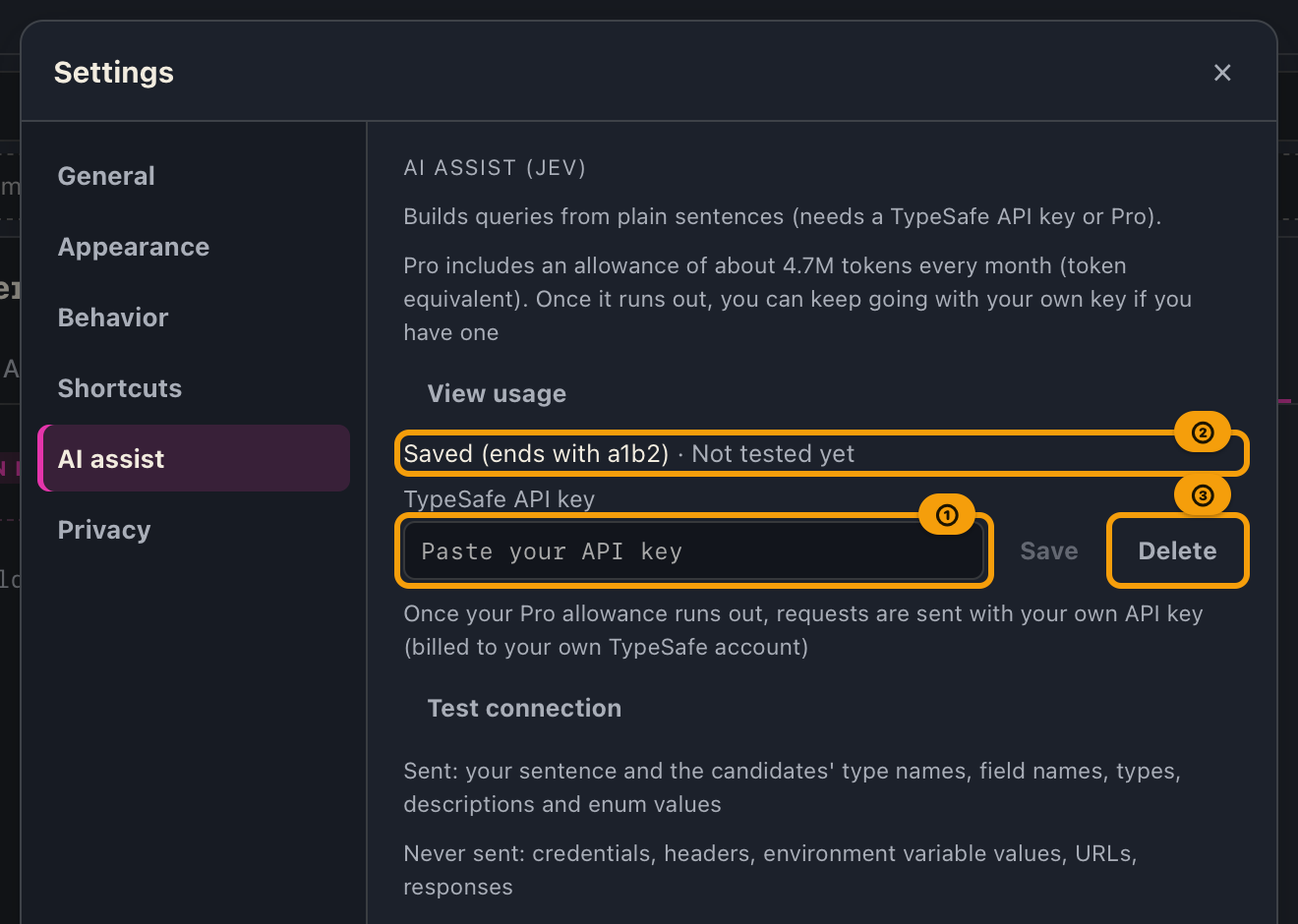
The key is stored only on this computer. It is not included in project exports. When you use your own key, usage is billed to your own TypeSafe account (Settings always shows a line saying so). On Pro, GalleonQL uses the Pro allowance first even if you have saved a key, and switches to your key once the allowance runs out.
2. Test the connection
Test connection sends a small real request to TypeSafe and shows "Connected (N tokens)" only after checking that a valid answer came back.

Once the test passes, a sentence input appears right below the URL field in the top bar (where the Pro allowance is available, it appears right away, whether or not you have a key or have run the test; on Free, it never appears).
3. Check your usage
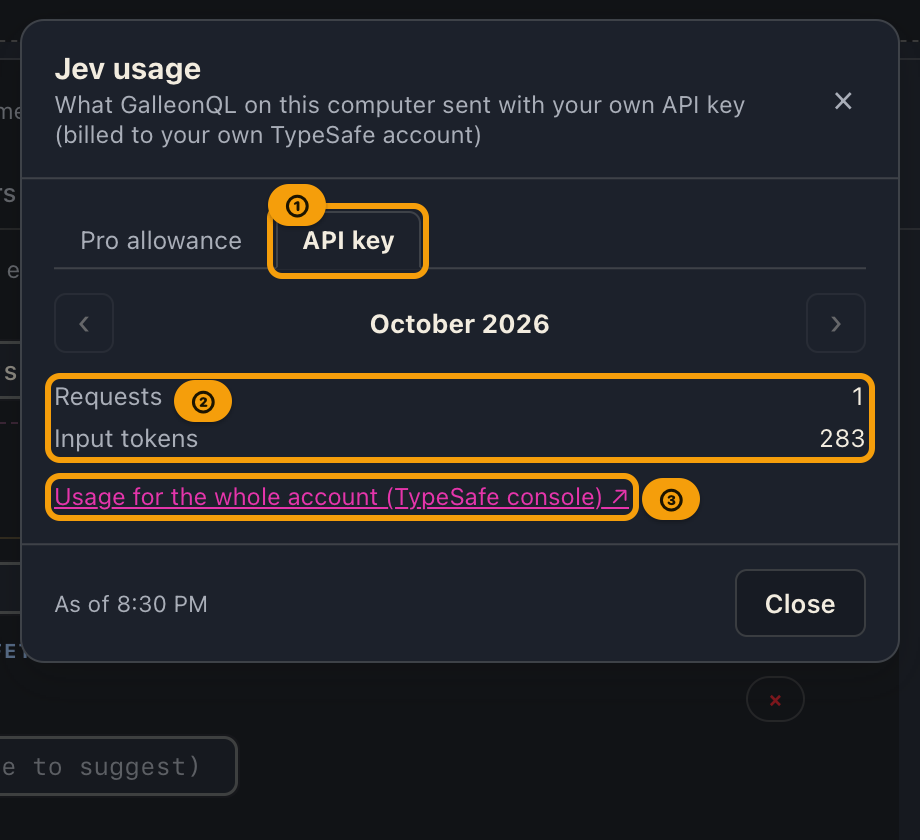
Press View usage in the same section to open the usage pop-up (Settings itself no longer shows your usage; see "Viewing your usage" below). What you sent with your own key is on the pop-up's API key tab. It counts only what GalleonQL on this computer sent. If you use the same key in other apps, it will not match your whole account. To see the whole account's usage and charges, use "Usage for the whole account (TypeSafe console)" on that tab (GalleonQL does not show charges).
Using the Pro allowance
If you are on Pro, you can use AI assist within the allowance included in Pro. Even if you have saved your own TypeSafe key, GalleonQL uses the Pro allowance first. When Settings → AI assist (Jev) says "Pro includes an allowance of about 4.7M tokens every month (token equivalent). Once it runs out, you can keep going with your own key if you have one", this is the mode you are in. The input below the URL field appears right away, without a connection test.
- The allowance is about 4.7 million tokens every month (token equivalent). It counts input tokens (the relay server's processing is converted to tokens and included in the input tokens).
- Requests go to Jev through Trimix's relay server. Your Pro plan is checked on every request.
- The limit is monthly. The right-hand area shows "N% left this month". Right after launch, before GalleonQL has received the number from the relay server, it shows "--- left this month" (GalleonQL never guesses; press it to load your usage).
- When the allowance runs out:
- If you have saved your own key, GalleonQL sends the same request with your own key right away. The right-hand area shows "Allowance used up · own key". Until the allowance resets, usage is billed to your own TypeSafe account (hover over it to see the reset date). After that date (the 1st of each month, UTC), GalleonQL goes back to the Pro allowance.
- If you have no key, you see "You've used this month's allowance (resets
) ", and it stays unavailable until that date (the 1st of each month, UTC). The date is shown in your region's format.
- When Jev is busy you see "Jev is busy right now (available again at ". Try again after that time.
- When everyone using the Pro allowance has together reached the day's limit, you see "Jev has reached today's usage limit (available again at ". Try again after that time (midnight UTC every day). This does not use up your own monthly allowance.
- When Jev is busy, when the daily limit is reached, when the relay server can't be reached, or when something goes wrong on the relay side, GalleonQL does not switch to your own key, even if you have one (it never quietly sends requests that you pay for).
- If you are no longer on Pro, the input and its Settings section disappear and AI assist can no longer be used (even with a saved key). If you are still on Pro but your purchase cannot be confirmed, GalleonQL sends with your own key if you have saved one; if you have no key, you see "Couldn't confirm your Pro plan".
Viewing your usage
Either of these opens the Jev usage pop-up:
- Press what the right-hand area shows: "N% left this month" ("--- left this month" right after launch), or, when you sent with your own key, "This build: N tokens" or "Allowance used up · own key".
- Press View usage in Settings → AI assist (Jev) (shown on Pro and when you have saved a key; this works before your first build, too).
The pop-up has two kinds of usage: Pro allowance and API key. On Pro with a saved key, you get two tabs at the top. If only one applies to you, you see just that one (no tabs).
- The first tab shown is API key if you have used up this month's Pro allowance, and Pro allowance otherwise. When you open it from the right-hand area after sending with your own key, it opens on API key.
- Click a tab to switch (or move to it with the Tab key and press Enter / Space). Once you switch tabs yourself, the tab stays put even after the records finish loading.
Each time it opens, GalleonQL reads the latest records once (it does not refresh while open). While it is reading, it shows only "Loading…" and no numbers. Both tabs show one month at a time, and neither shows charges.
The Pro allowance tab (the relay server's records; only what you sent within the Pro allowance):
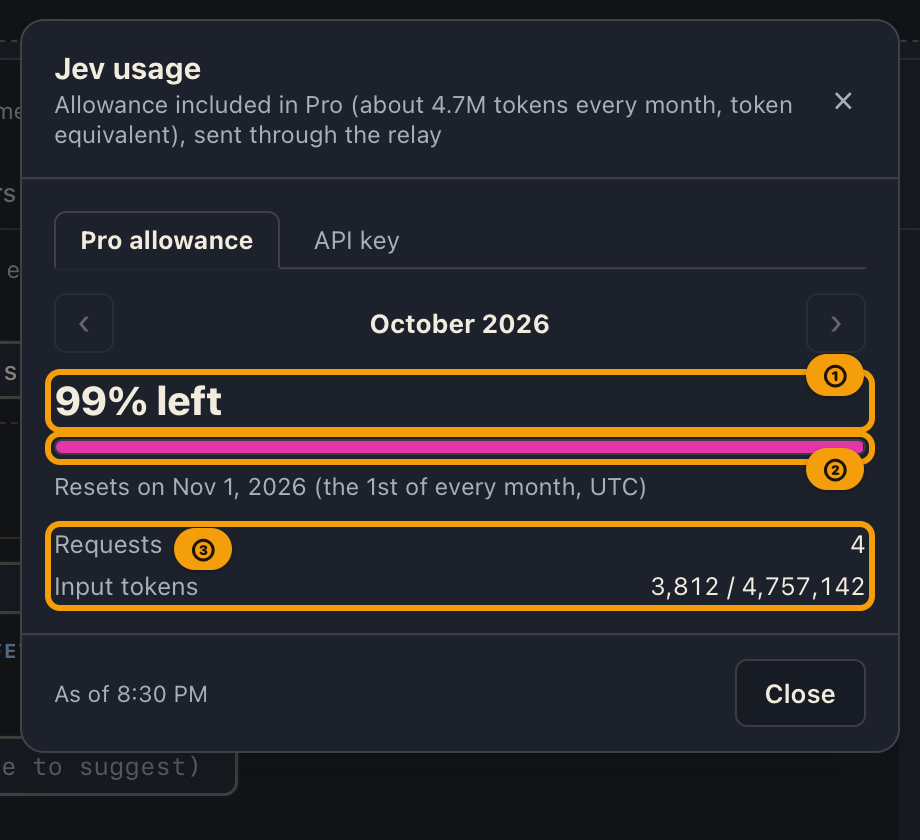
- For this month: "N% left" and the date the allowance resets (the 1st of every month, UTC). A month that has been used up shows "All used".
- The bar below the headline shows what is left. It starts full and gets shorter as you use it (earlier months work the same way).
- For earlier months: "N% used" and the dates the month covers (UTC).
- The table shows the number of requests and the input tokens (including the relay server's processing) against the limit. In a month where the last request went past the limit, the input tokens are shown as the same number as the limit. If you have not used it yet this month, it says "Not used yet this month".
- If the record cannot be read, you see the reason and a Try again button. If your Pro plan can no longer be confirmed, it says "Couldn't confirm your Pro plan" and earlier months cannot be viewed either.
The API key tab (this computer's records; only what you sent with your own key):
- Shows the number of requests and the input tokens that GalleonQL on this computer sent with your own key (there is no limit and no bar). If you have not used it yet this month, it says "Not used yet this month".
- Use "Usage for the whole account (TypeSafe console)" to see your whole account's usage and charges.
On both tabs:
- When earlier months have records, switch months with ‹ › on either side of the month name (or the ← → keys). Months you did not use have no record and are skipped.
- The bottom shows when the record was read ("As of
How a build works
1. Type a sentence and build
In the input (✨) below the URL field, describe the data you want and press Enter, or press Build below the Send button. You can write in English or Japanese. When empty, the input is a single line (if the hint text doesn't fit, its end is cut off with "…"; hover over it to see the full text). Press Shift+Enter to start a new line; once you type, the input grows with each line (past 8 lines, it scrolls). While the request is in flight, the icon on the Build button spins and the field to its right shows "Asking Jev…".


2. First-time confirmation per project
Only the first time you use it in a project, GalleonQL shows "Part of this project's schema will be sent to TypeSafe" together with what is sent and what is never sent. Send continues; Don't send sends nothing.

3. Choose the root
Below the input, three candidates for which field the query starts from appear with their probabilities. The first one is selected, so press Enter if it is right.
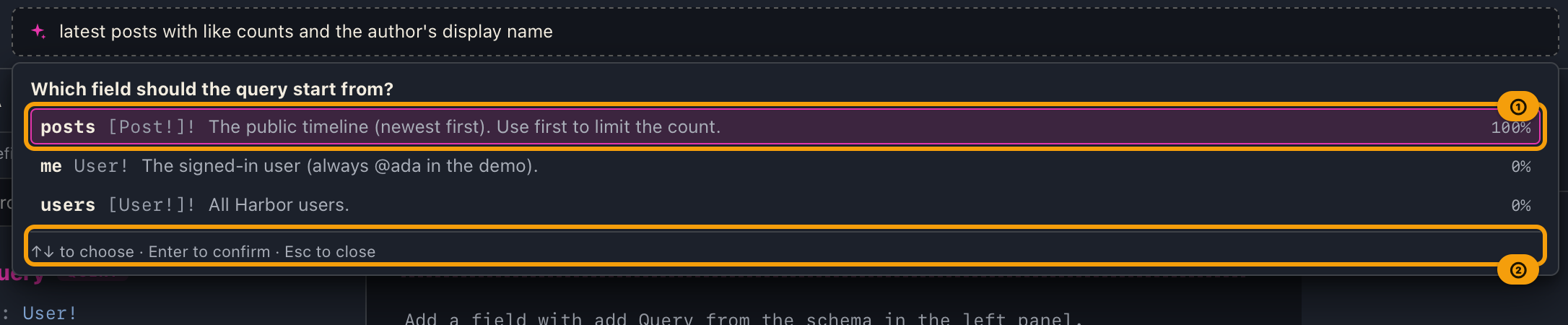
- Use ↑ / ↓ to choose another, Enter to confirm, and Esc to close. You can also click a candidate.
- When Jev answers "none of these", GalleonQL shows "No match" and still lists the three closest candidates (none of them is selected).
4. Review and confirm the suggestions
After you confirm the root, a list of suggestions for what to add directly under that field appears.
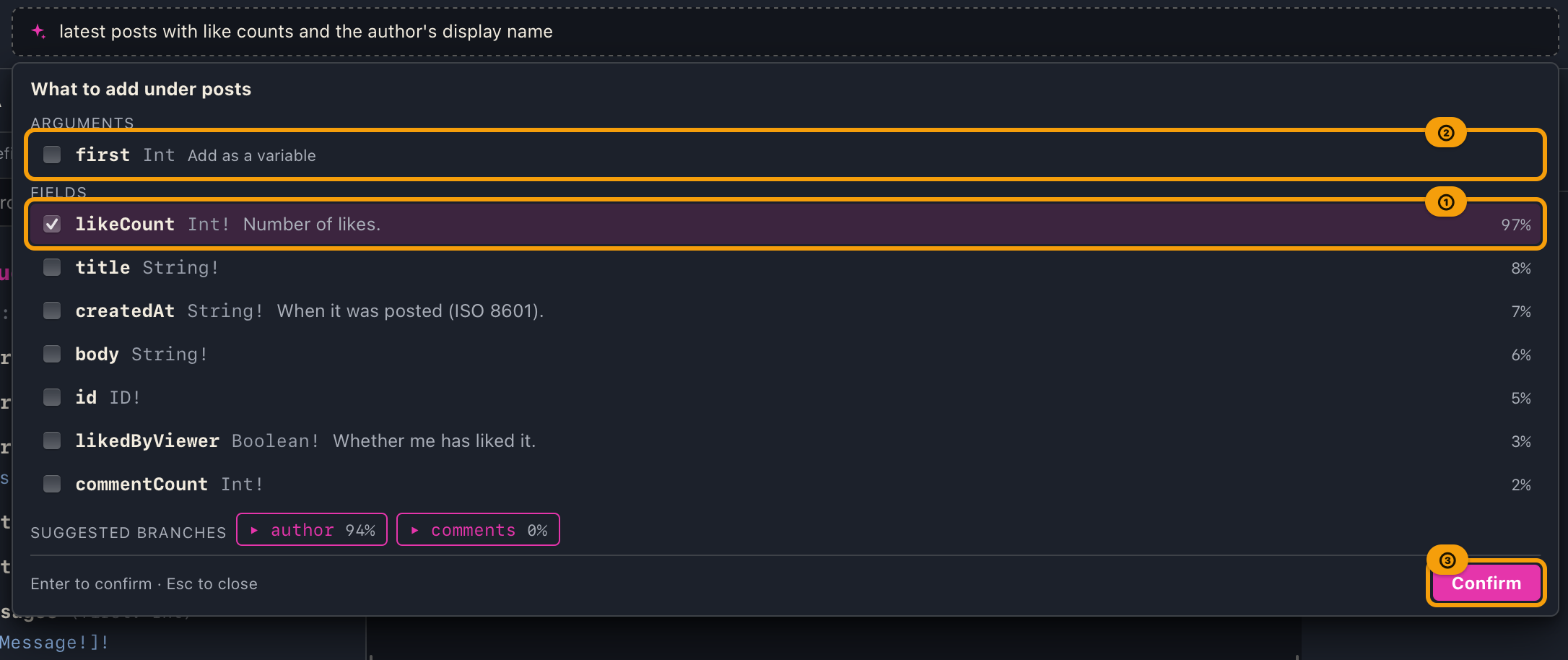
| What you see | Meaning |
|---|---|
| A checked field | Jev answered that the sentence asks for it (probability 50% or more) |
| The "Check" mark | Jev was unsure (fields at 30–70%, or an argument value chosen with low confidence) |
| A value picker for an argument | An argument with a fixed set of values (enum). Jev's choice is selected; "Not set" is also available |
| "Variable (required)" | A required argument whose value you enter yourself (IDs, dates, numbers, …). It is added as a GraphQL variable |
| "Add as a variable" | An optional argument whose value you enter yourself. Check it to add it as a variable |
Uncheck, check, or pick other values on the spot, then press Enter (or Confirm) to add them to the builder. When variables are added, the builder switches to variable mode and you enter the values in the variable inputs (step 9 "Switch the input mode (Inline / Variables)" in Query Builder).
Once you confirm, keyboard focus moves to the query panel (the row of the field you added, or the whole panel, outlined, when that row can't be selected). Pressing Enter again does not build again; to build another query, click the input and press Enter. Press Esc to close the panel shown after confirming.
5. Expand a suggested branch
The suggestion list, and the view shown after confirming, include Suggested branches (buttons such as ▸ author). Pressing one expands that field under the current field and shows a suggestion list for it in the same way. You can keep going. If you press a branch in a suggestion list, the current selection is confirmed first and then the branch is expanded.
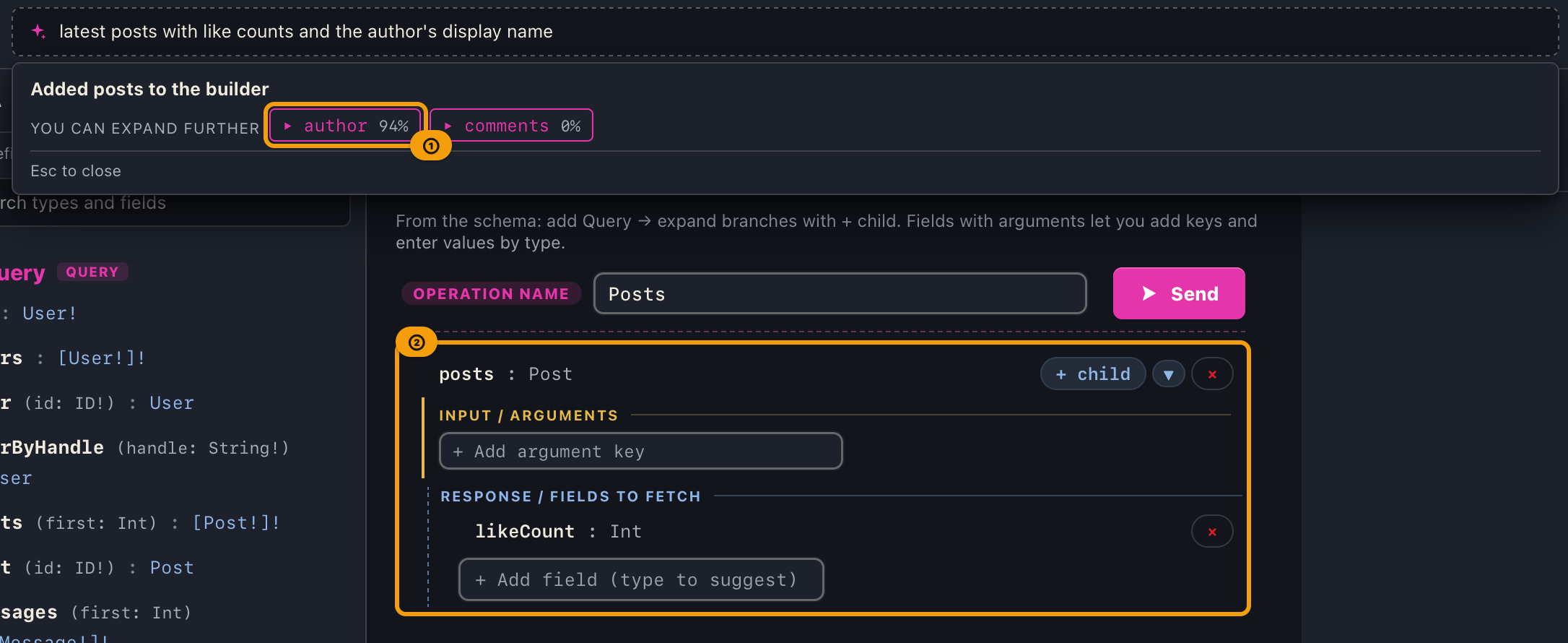
When you send with your own key, the field to the right of the Build button shows the input tokens this build sent ("This build: N tokens"). Press it to open the usage pop-up on the API key tab. The built query is never sent automatically. Review it, then press ▶ Send.
What is sent and what is not
| Sent | Never sent |
|---|---|
| Your sentence | Credentials (tokens, passwords) |
| Candidate type names, field names, and types | Headers |
| Candidate descriptions (as written in the schema) | Environment variable values |
| Enum values | URLs |
| Responses |
The items that can be sent are fixed inside the app; nothing else can be sent.
When you use the Pro allowance, the items above reach TypeSafe through Trimix's relay server. To confirm your Pro plan, GalleonQL also sends your purchase information to the relay (the signed App Store transaction in the Mac App Store version, the license key in the Windows / Linux version). The relay keeps an ID that identifies you and your usage. It does not store your sentence or the schema candidates.
Cost and usage
- With your own key, TypeSafe bills the key's owner. It is not part of GalleonQL's pricing. With the Pro allowance there is no extra charge (there is a monthly limit). What you send with your own key after the Pro allowance runs out is billed to your own TypeSafe account.
- GalleonQL does not show charges. Check them in the TypeSafe console ("Usage for the whole account (TypeSafe console)" on the usage pop-up's API key tab).
- With the demo schema, one build (the root plus one level) used about 1,700 tokens, and about 2,700 tokens with one branch expanded. Larger schemas use more.
Current limitations
- Only Query can be built (Mutation and Subscription are not supported).
- Nothing is sent automatically.
- Values are not generated for ID, date, number, or free-text arguments. They are added as empty variables for you to fill in.
- Fields of union types (which need inline fragments) are not offered as candidates.
- Jev's answers are not always right. Always review the suggestions before confirming.
- If a type has a very large number of fields (for example, more than 254 root fields), the candidates cannot be sent and you get an error.
Troubleshooting
| Symptom | Likely cause | What to do |
|---|---|---|
| No input appears below the URL field | No key is saved, or the connection test has not passed | Save the key in Settings → AI assist (Jev) and press Test connection |
| No input appears even though you have not entered a key | You are not on Pro, or this build has no relay configured | Upgrade to Pro, or save your own TypeSafe key and run the connection test |
| The input is disabled ("Import a schema to use this") | No schema has been imported | Import a schema |
| "The key is invalid" | The key is wrong or has been revoked | Press "Open settings", save the key again, and run the connection test |
| "Rate limit exceeded (429)" | TypeSafe's rate limit | Wait a moment and build again |
| "TypeSafe is overloaded (529)" | TypeSafe is busy | Wait a moment and build again |
| "You've used this month's allowance (resets |
The Pro allowance is used up (and you have not saved your own key) | Wait until that date, or save your own TypeSafe key (from the next request, GalleonQL sends with your key; billed to you) |
| "Allowance used up · own key" | The Pro allowance is used up, so GalleonQL is sending with the key you saved | This is expected. Until the allowance resets (the 1st of each month, UTC), usage is billed to your own TypeSafe account |
| "Jev is busy right now (available again at | The relay is rate-limited as a whole (GalleonQL does not switch to your own key) | Try again after the time shown |
| "Jev has reached today's usage limit (available again at | Everyone using the Pro allowance has together reached the day's limit (GalleonQL does not switch to your own key) | Try again after the time shown |
| "Couldn't confirm your Pro plan" | Your Pro purchase or license could not be verified (expired, refunded, offline), and you have not saved your own key | Check your plan and try again in a little while |
| "The previous request is still being processed…" | You sent requests back to back | Wait a moment and try again |
| "Something went wrong on our side. Try again in a little while" | A problem on the relay side | Try again in a little while |
| The usage pop-up says "Couldn't confirm your Pro plan" | Your Pro plan has ended, or your purchase or license could not be verified | Check your plan and press Try again |
| "Can't reach TypeSafe" | You are offline | Check your connection and build again |
| "Can't reach our relay server. Check your connection" | You are using the Pro allowance and the relay server can't be reached (you are offline) | Check your connection, then build again or press "Try again" |
| "The field to expand is no longer in the builder" | The parent field was removed, or you switched tabs, before expanding the branch | Start again from the root |
| Building from a Mutation tab opened a new tab | Query and Mutation fields cannot be mixed in one operation | This is expected; the result goes into a new tab as a Query |
Related documentation
- Editing after a build: Query Builder
- The schema the candidates come from: Importing a Schema
- Sending and reading results: Sending Queries and Reading Responses
- Manual index: GalleonQL User Manual