
Importing a Schema
This page explains how to import a GraphQL endpoint's schema into GalleonQL (via HTTP introspection, and by reading from a local file / directory).
For terms such as schema, leaf, and branch, see Key Terms.
Prerequisites
- The app is running per the steps in What GalleonQL Is / Installation and Launch.
- In the top-bar environment selector, an environment (connection profile) that points at the endpoint you want to import is selected. Importing cannot be run if there is not a single environment. For how to create an environment, see Registering and Switching Environments.
- If you import over HTTP, the target endpoint accepts introspection queries (most servers have it enabled by default, but it may be disabled in production).
- HTTP requests to the outside are issued from GalleonQL itself (the desktop process). Because it is not subject to the browser's CORS restrictions, even an internal API a browser cannot reach directly can be imported as long as your PC can reach it.
Import a Schema (HTTP Introspection)
The endpoint URL, headers, and authentication are not entered directly in the schema panel; they are resolved from the settings of the environment selected in the top bar.
- Select the environment to import from in the top-bar selector. The resolved endpoint URL of the selected
environment is shown next to the selector.
- State the port number explicitly in the URL. If you omit it,
http://connects on port 80 andhttps://on port 443. On local development servers (for example:8080or:4000), a missing port is a classic cause of connection failure.
- State the port number explicitly in the URL. If you omit it,
- If authentication is required, set the method and secret in the "Auth" section of the environment editor
(hand-writing
Authorizationinto an environment header is discouraged).- Bearer: choose
Beareras the default auth method and enter the access token in "Bearer token." - Basic: choose
Basicas the default auth method and enter "Basic username" and "Basic password." - No authentication: leave it as
None. - For details of the setup steps, see Registering and Switching Environments.
- Bearer: choose
- Click the "⟳ Load" button in the heading of the schema panel (or "⟳ Reload" if already imported) to run the HTTP introspection. The schema panel opens from "Schema" on the rail at the far left, and is already open when the app starts. When the panel is too narrow for the environment name in the heading, this button shows only the ⟳ icon (hover over it to see what it does).
- During the import the button shows a spinning icon and "Loading...". The connection timeout (default 10 seconds) and the whole-request timeout (default 60 seconds) can be changed by the user, in the "HTTP timeouts" section of the project editor drawer or the environment editor (see Registering and Switching Environments). If there is no response within that time, it is treated as a failure. For a slow server, extend the total timeout and retry.
When the Import Succeeds
On success, the schema panel (heading "SCHEMA") shows a summary like the following in green.
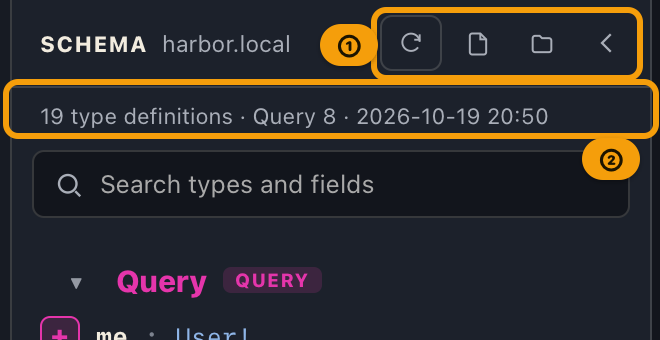
42 type definitions · Query 8 · Last fetched 2026-07-09 13:45
- Type definitions: the total number of all type definitions contained in the schema (in addition to Query / Mutation, this includes object, scalar, enum, interface, union, and so on).
- Query fields: the number of fields directly under the
Queryroot (0if there is noQuerytype, or it has none). - Last fetched: the date and time that schema was fetched over HTTP (shown as an absolute local time). When it is shown from the cache, the date and time of the previous HTTP import is shown as-is.
Following the summary, the type catalog tree is displayed. For how to read it, see Browsing the Schema Documentation.
Success that includes some errors (partial errors): depending on the server, the response may include both
dataanderrors. If a schema can be built fromdata, the number of type definitions and so on are shown, but the contents oferrorsare listed alongside on a yellow background below the summary. The schema can still be used normally in this case, but the types and fields flagged in the warning may not be reflected, so check the contents.
When the Button Cannot Be Pressed
If the import button is disabled and cannot be pressed, there is a problem in the setup prior to importing. Hover the mouse over the button to see the reason in a tooltip.
| Symptom | Likely cause | What to do |
|---|---|---|
| The button is always disabled / the environment selector shows "(No environments)" | No environment has been registered yet | Add one in the environment editor |
| The button is disabled and the URL field is empty | The request URL hasn't been set | Set the "Request URL" in the environment editor |
| The button is disabled and the warning bar shows "Unresolved variables: ..." | An environment variable referenced by {{...}} isn't defined |
Add the referenced environment variable |
Import from a Local File / Directory
If you cannot fetch over HTTP — because introspection is disabled in production, because you are working offline, and so on — you can import from a local schema file. Use the following buttons in the SCHEMA heading of the schema panel (neither of them issues any HTTP).
| Button | Action | Purpose |
|---|---|---|
| Import from file | Opens a file-picker dialog | Reads a single file (JSON or SDL) |
| Import from folder | Opens a directory-picker dialog | Reads schema-related files in a folder (including subfolders) all at once |
Supported Formats
| Format | Typical extension | Contents |
|---|---|---|
| Introspection JSON | .json |
Either the { "__schema": ... } shape on its own, or the raw HTTP response shape { "data": { "__schema": ... } } |
| GraphQL SDL | .graphql / .gql |
Schema definition text such as type Query { ... } |
- Single file: if the first non-whitespace character of the content is
{, it is interpreted as JSON; otherwise it is treated as SDL and an import is attempted. Being syntactically readable (thetype/interface/uniondefinitions and so on can be parsed) does not guarantee that the import will succeed. SDL that references a type that does not exist, that uses an invalid type for a union member, or that specifies the wrong kind of type for an argument or field will still fail to import — even though it is syntactically well-formed — and shows a[Corrupt cache]error in the schema panel. On the other hand, some SDL published by real-world GraphQL services does not fully satisfy every GraphQL validation rule (for example, a@deprecatedannotation that is inconsistent between an interface field and the implementing type's field), and such violations do not block the import, including the member-type lists of unions and interfaces. - Directory: only
.graphql/.gql/.jsonfiles underneath are targeted (README.mdand the like are ignored). If there are.jsonfiles, the first valid Introspection JSON that succeeds — in ascending order of relative path — is adopted; if there is no JSON, or all fail, the.graphql/.gqlfiles are concatenated in ascending order and read as a single SDL. This is intended for importing an SDL split into multiple files (one file per type) all at once. If there are multiple valid JSON files, only the first one is adopted; they are not merged.
A schema read from a local source is also cached with "the project x the resolved URL" as its key, just like an HTTP import. If the
content is empty, invalid, or an SDL with a syntax error, a [Corrupt cache] … error is shown in red in the schema
panel. Fix the content and re-select it, or try an HTTP import.
Cache Behavior
An imported schema is automatically cached locally (on your device). Thanks to this, even if you restart the app, an endpoint you have imported once is re-displayed with no wait from the next launch onward.
- The cache key is "the project you have selected x the resolved endpoint URL" (not the environment itself). Within the same project, even different environments share the same schema if their resolution points at the same URL. Note that even if authentication or headers differ, a schema imported under one environment is also shown under the other as long as the URL is the same. A different project does not share the cache even when it uses the same URL. After switching projects, a URL you have never imported in that project starts from "Not loaded yet."
- At launch and when switching environments, it only reads the cache and issues no HTTP. Introspection, which can take tens of seconds, is only run when you press "⟳ Load" or "⟳ Reload." "Import from file" and "Import from folder" also issue no HTTP.
- There is no automatic refresh (TTL). Refreshing is always a manual operation via "⟳ Reload" or "Import from file."
- The storage location depends on your OS: on macOS (the Mac App Store build)
~/Library/Containers/jp.trimix.galleonql/Data/Library/Application Support/jp.trimix.galleonql/galleonql.db, on Windows%APPDATA%\jp.trimix.galleonql\galleonql.db, and on Linux~/.config/jp.trimix.galleonql/galleonql.db. In addition to the schema cache, this file also stores the environments you registered, the environment you last selected, and your request history. If you delete the file, all of these are lost as well. - Diffing between caches (a comparison view of added/removed types and fields) is not yet implemented.
The "Not loaded yet. …" message appears when the selected endpoint URL has no cached schema, this project has no schema imported from a file or folder, and the schema panel is not currently showing a schema. For example:
- The first time you launch the app, or right after switching projects
- When the previous import failed and the pane is showing its error
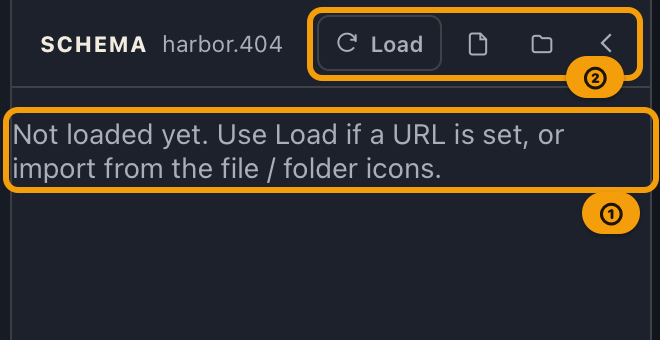
Switching to an environment whose URL has never been imported within the same project does not show this message on its own. The schema you were looking at stays on screen. This is deliberate: it lets you keep working from a local schema file when introspection is disabled in production. It also means the schema in the schema panel is not necessarily the one from the environment you have selected. When you need the new endpoint's schema, switch environments and then press the import button.
In every case, HTTP is never run automatically; the button operations above are the only import path.
Handling Errors
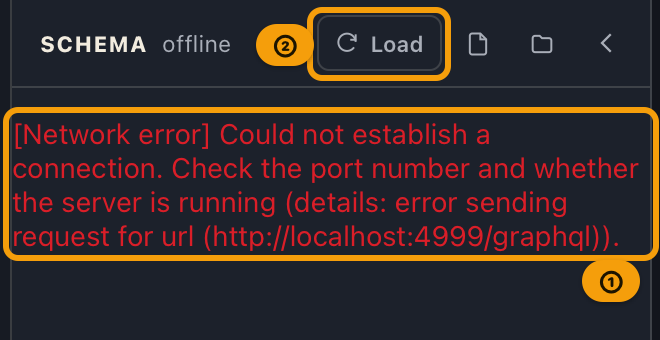
If the import can be run but results in an error, it is shown in red in the schema panel in the form
[classification] message. The meaning of each classification (cause) is as follows. For the way classifications
are conceived, also see "Error Classification" in Key Terms.
| Classification | Main causes | What to do |
|---|---|---|
| Network error | Connection failure, timeout, DNS / TLS errors, and other cases where the server cannot be reached | Check the details at the end of the message. For a timeout, check the server's response speed, or extend the total timeout in the "HTTP timeouts" section and retry; for "cannot establish a connection," check for a missing port or whether the server is running; for "cannot resolve host name," check the URL's host name or whether a VPN is required; for "TLS/certificate verification failed," check the certificate's expiry and host-name match |
| Auth error | HTTP 401 / 403 | Check the "Auth" section of the environment editor (method, token, etc.). In the final-headers preview, see whether Authorization is present and whether the token has expired |
| Client (query) error | HTTP 400, or you specified a URL where the target does not allow introspection / is not a GraphQL endpoint | Check the URL's trailing path (for example, a forgotten /graphql) and whether introspection is enabled on the server. If the response is not in GraphQL form, it shows "Not a valid GraphQL response. …" |
| Server error | HTTP 5xx, or a malformed response | Check the server-side logs, or wait and retry. If it persists, contact the server administrator |
Cache-Related Errors
If reading the cache when selecting an environment fails, an error is also shown in red. This is a separate classification from the HTTP errors above, and the import button remains pressable (it can be used as a recovery path).
| Classification | Main causes | What to do |
|---|---|---|
| Cache DB error | Reading/writing the local storage area failed (insufficient disk space, file-permission problems, etc.) | Retry "⟳ Load" (or "⟳ Reload"). If it does not resolve, check disk free space and the permissions of the storage file |
| Corrupt cache | Parsing the stored JSON or building the schema failed. The same classification applies when the content was invalid on a local read | Re-import with "⟳ Reload," or re-select the correct file / directory — this overwrites the cache with valid content and resolves the issue |
Note that if the import (HTTP) itself succeeded but only saving to the cache failed, it does not move to the error screen; a warning on a yellow background is shown below the green summary. The schema shown can be used as-is, but it is lost when you restart.
Related Documentation
- Registering, editing, and authenticating environments, plus the header cascade: Registering and Switching Environments
- Configuring request timeouts: Registering and Switching Environments — "Setting HTTP timeouts" section
- How to read and search an imported schema: Browsing the Schema Documentation
- Building a query: Query Builder
- Term definitions: Key Terms
- Manual index: index