
Query Builder
This page explains how to build up fields with add Query / add Child, assembling a GraphQL query step by step while looking at the schema.
What the Query Builder is (overview)
The Query Builder is the screen where you assemble a query one level at a time, while looking at the schema documentation in the left panel. You insert a root field with add Query, then stack add Child on each branch to expand its inside. The query you are assembling is always previewed in the PREVIEW panel at the bottom, and you can copy it and send it as is.
A query doesn't depend on the environment — when you send it, it's combined with whichever environment is currently selected (Registering and switching environments). For terminology, see Key terms.
Prerequisites
- You have already imported a schema via Importing a schema.
- You understand the difference between leaves (scalar / enum) and branches (object / interface / union) (Browsing the schema documentation, Key terms). The Query Builder uses the same distinction.
- You understand the difference between an "environment variable" and a "GraphQL variable" (Key terms). The Query Builder itself does not resolve environment variables.
Where it is on screen
The Query Builder is on the Query tab of the request pane. The schema documentation (type catalog) is laid out
in the left panel when you press "Schema" on the rail at the far left (the schema panel; the app starts with it
showing). + query appears on the field rows in the schema panel, so after you click it, check the added root on
the Query tab of the request pane (if the tab is on Headers / Auth, switch to the Query tab). Building a query does
not close the schema panel automatically.
Split button (main button + ▼ menu)
+ query (branch field rows in the schema panel) and + child (branch node rows in the builder) are each a
split button made up of two adjacent buttons.
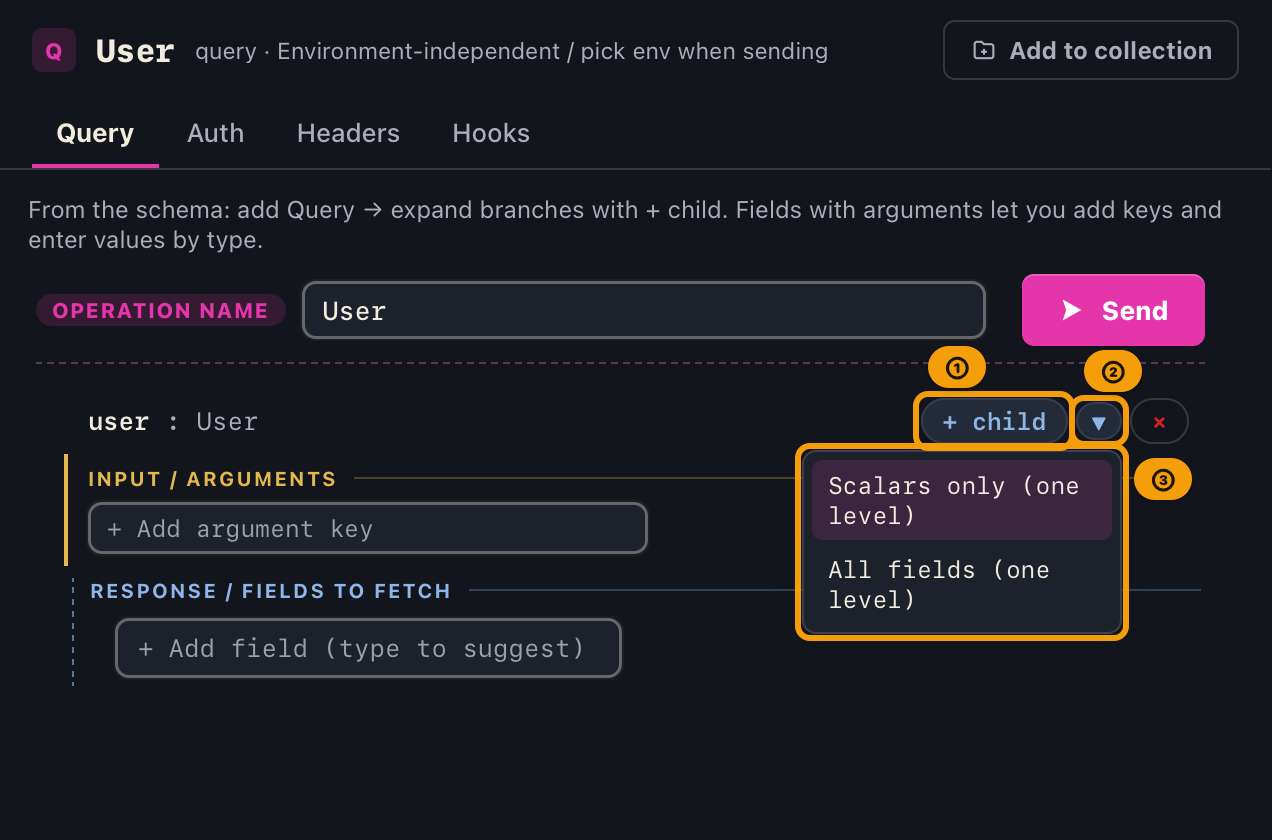
- Main button (
+ query/+ child): commits and inserts on the spot, following its fixed default.+ querymain button … always adds with no children (field name only)+ childmain button … always adds scalars only (just the leaves, one level deep)
- ▼ button: a two-choice menu, "Scalars only (one level)" or "All fields (one level)". Choosing one applies that granularity for that one time only (the fixed default does not change).
- A leaf field's
+ queryhas no ▼ — with no children to expand, it's just a plain button.
Telling input (arguments) from response (fields to fetch)
The builder tree mixes two things: the values you send to the server and the shape you receive back. Which range you are looking at is shown by a heading and the style of the vertical rule.
| Range | Heading | Vertical rule | Meaning |
|---|---|---|---|
| Input | Input / Arguments |
solid | Where you enter values (the arguments) |
| Response | Response / Fields to fetch |
dashed | Where you choose which fields to receive |
Because the distinction is carried by the heading text and the rule style, it still reads when colors are
hard to tell apart. Input / Arguments appears for every field that has arguments. Response / Fields to fetch appears only at the root (the levels below it are a continuation of the response).
Steps
1. Add a root field with add Query
- In the schema documentation in the schema panel, open the Query type (or the Mutation / Subscription type).
- On a root type (Query / Mutation / Subscription), click the
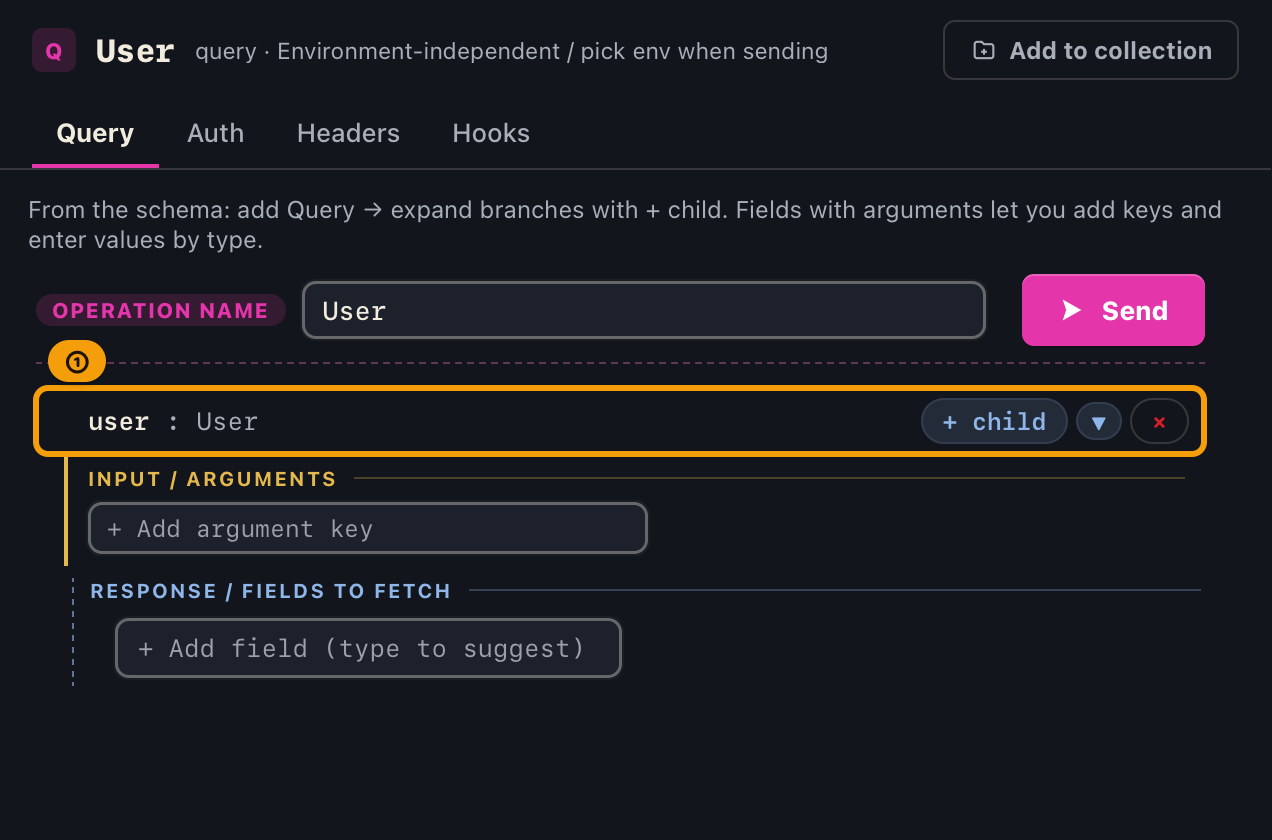
+ querymain button at the left edge of the field row. - A new request tab opens with that field as its root, and the app switches to it.
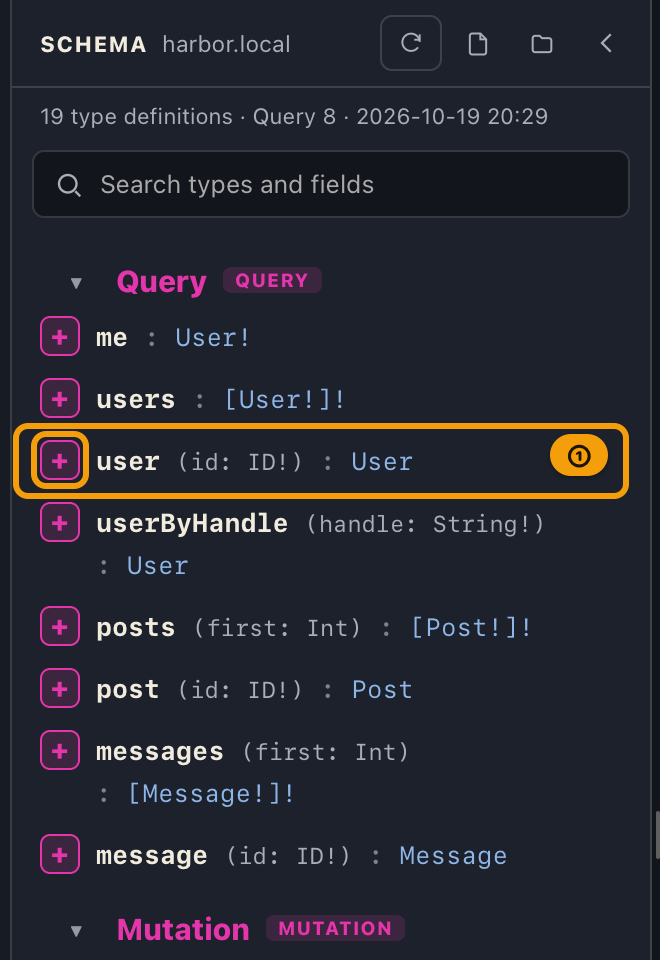
Pressing the same query twice does not add another tab. If one is already open, it moves to that tab instead of creating a new one, and the tab at the top flashes briefly to show you where it is.
Hold Ctrl and click + to open it in a new tab regardless (useful for trying the same query with
different arguments side by side). This is a mouse click with Ctrl held, not the + key on the keyboard.
If the schema has no Subscription type, the + query buttons for Subscription are not shown at all
rather than shown disabled.
The + query main button never inserts children. Even a branch field is added empty on the inside —
this is intentional, so you don't have to delete unwanted fields after every insertion. Because GraphQL
syntax doesn't allow an empty branch to be written as { }, the PREVIEW automatically fills it in
with just __typename. Once it's added, use + child in the next step to expand what's inside.
If you open a branch field's ▼ and choose "Scalars only (one level)" or "All fields (one level)", you can, for that one time only, add it to the root with its immediate fields already filled in at the chosen granularity.
2. Insertion granularity (the main button's fixed default and the ▼ one-time override)
The "insertion granularity" toggle (radio buttons) that used to be in the toolbar has been removed. Granularity is now decided only by the main button's fixed default and the ▼'s one-time override.
| Action | What gets inserted |
|---|---|
+ query main |
Always adds with no children (field name only) |
+ query ▼ |
For that one time only, "Scalars only (one level)" or "All fields (one level)" |
+ child main |
Always adds scalars only (leaves = scalar / enum) |
+ child ▼ |
For that one time only, "Scalars only (one level)" or "All fields (one level)" |
Options in the ▼ menu:
| Menu label | What gets inserted |
|---|---|
| Scalars only (one level) | Just the immediate leaves (scalar / enum) |
| All fields (one level) | The immediate leaves, plus the names of branch fields |
3. Expand one level with + child
An already inserted branch node (a field of object / interface type) shows a + child split button.
- Clicking the main button … always inserts only scalars, adding that type's immediate fields one level deep.
- Clicking the ▼ … choosing "Scalars only (one level)" or "All fields (one level)" expands at that granularity, for that one time only.
If an expanded child is itself a branch, a + child appears on it too, so you can keep clicking to extend
deeper recursively.
Even when the main button cannot be pressed, sometimes only the ▼'s "All fields (one level)" can be. For a type that has no leaves and only branches, the main button (scalars only) is disabled because there are 0 insertable leaves, but the ▼'s "All fields (one level)" is enabled because it can insert the branch names. So the main button being unpressable does not necessarily mean you cannot add any immediate fields — always check the ▼ as well. Only when both granularities yield 0 candidates are the main button and the ▼ both disabled.
4. Add one field at a time with suggest input
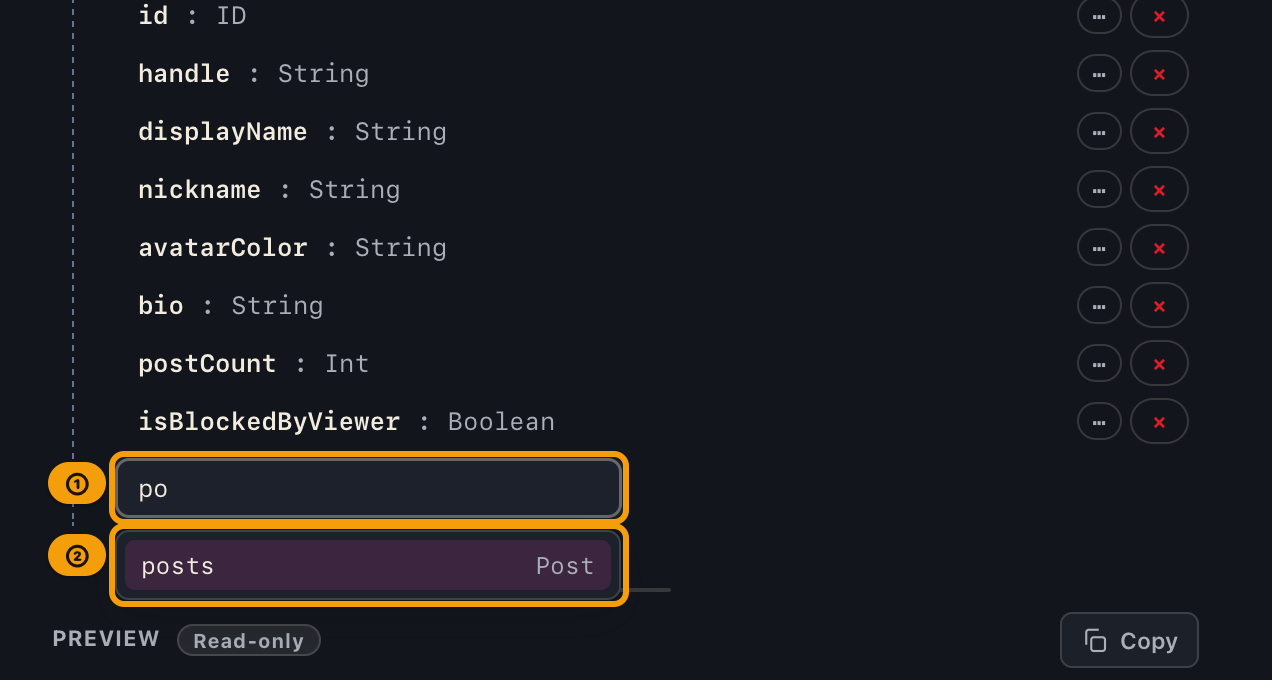
Below the list of children on each branch node is an input field labeled "+ Add field (type to suggest)".
- When you type part of a field name, candidates appear by case-insensitive partial match (already-added fields are excluded). All candidates are also shown just by focusing the field.
- Use
↑↓to move through the candidates andEnterto confirm, adding just that one field as a child. After adding, the input clears so you can keep searching for the next one. Esccloses it. You can also click a candidate row with the mouse to select it.
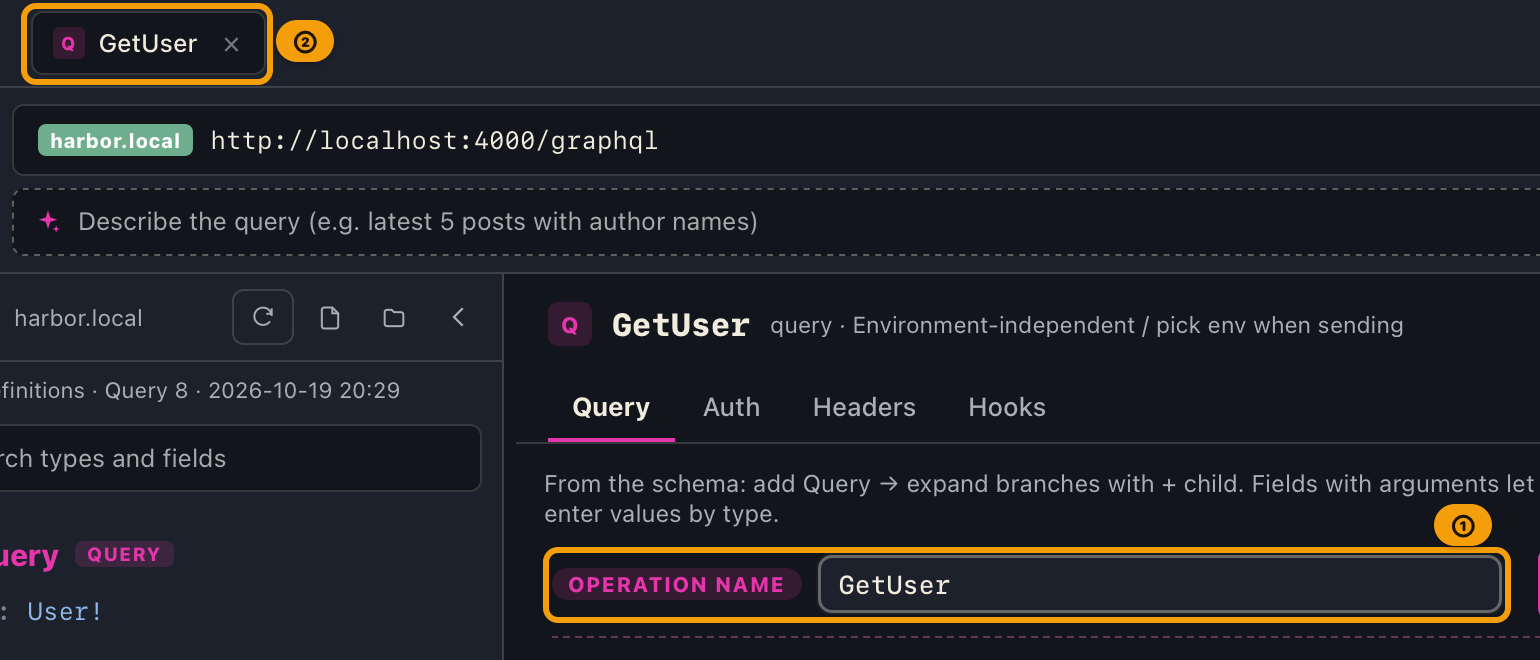
5. Set the operation name (operationName)
In the "Operation name" field at the top of the Query tab, you can enter the name of the generated GraphQL
operation (default MyQuery). It is also reflected in the request tab name on the top bar. Characters that
are invalid as a GraphQL identifier are auto-normalized, so whatever you type, the query in the PREVIEW is always
syntactically valid GraphQL.
6. Query, Mutation, and Subscription cannot be mixed
A single tab can hold roots of one kind only (an operation that mixes kinds is certain to be rejected by the
server's validation). That is why + always opens the query in a new tab — when you want to try another
kind, there is nothing to release: just press +.
6-2. A subscription can have only one root field
The GraphQL specification allows a subscription to have exactly one root field. This too is kept naturally by
+ opening a new tab (one tab = one subscription).
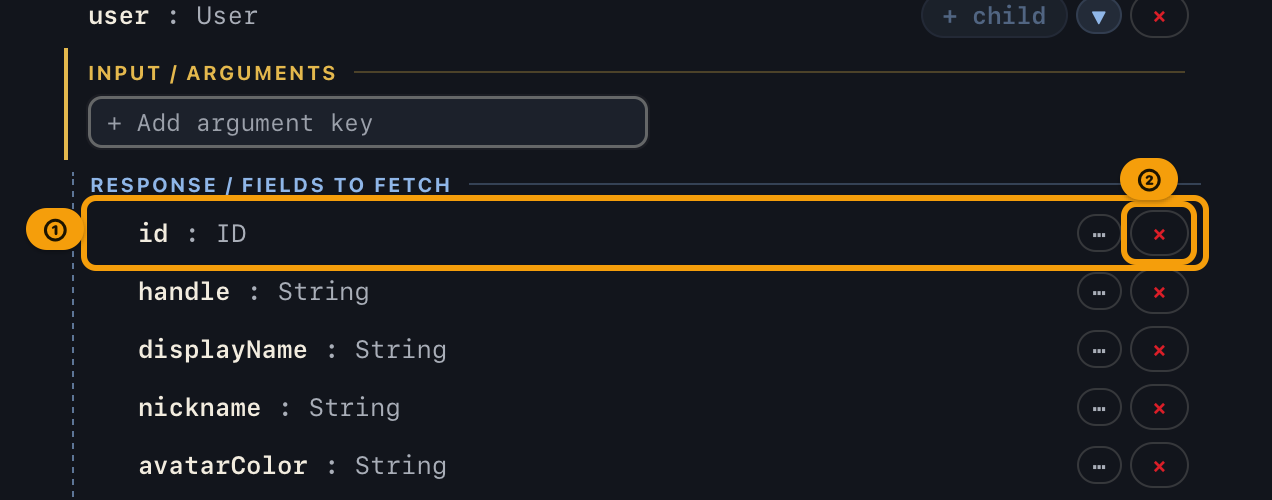
7. Delete a field
Click the × button at the right end of each node row to delete that node. Deleting a branch node deletes
its descendant child nodes together with it.
8. Enter arguments
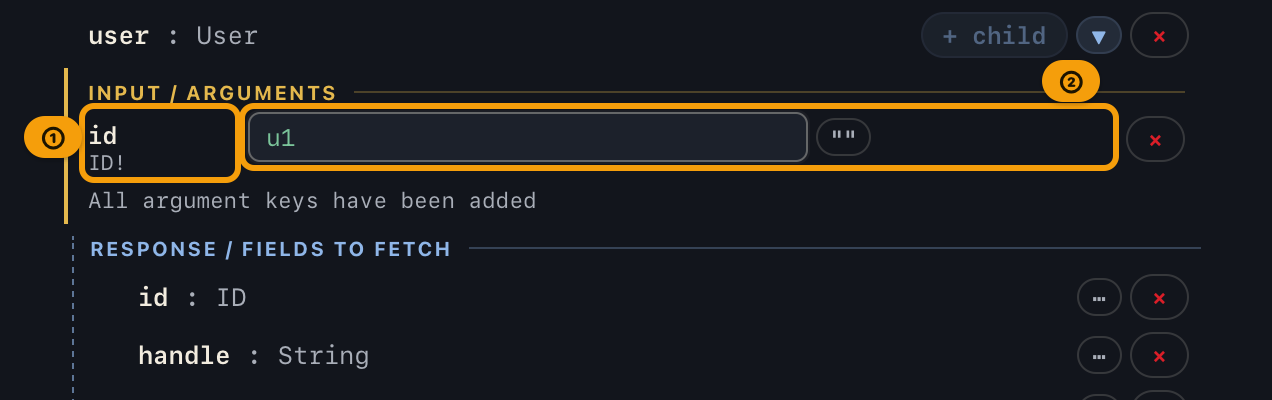
If a field has arguments, in that node's argument area choose an argument name from the schema via
"+ Add argument key", then enter a value in the type-specific value field. Once entered, it is emitted in
the PREVIEW as field(name: value).
- Enter String / ID and the like without quotes (they are escaped to
"..."when the query is assembled). - Emptying a value returns it to unset (omitted), and that argument does not appear in the query (it is
not automatically turned into null or
""). - When a required argument (
Type!) is unset, a warning is shown below the preview. - Enter arrays via "+ Item", and input objects via nested key additions.
- When the pane is too narrow for an argument name and its value field on one line, the value field moves to the line below the name (the field is never squeezed and its text is never cut off).
9. Switch the input mode (Inline / Variables)
At the top of the Query Builder there is an Input mode toggle [ Inline | Variables ] (kept per request). The toggle appears only after you have added at least one argument key to the query. The argument values you enter are shared by both modes; the mode only switches "how the generated query is written".
- Inline (default) … writes argument values directly into the query body (as in step 8). Good for trying things on the spot.
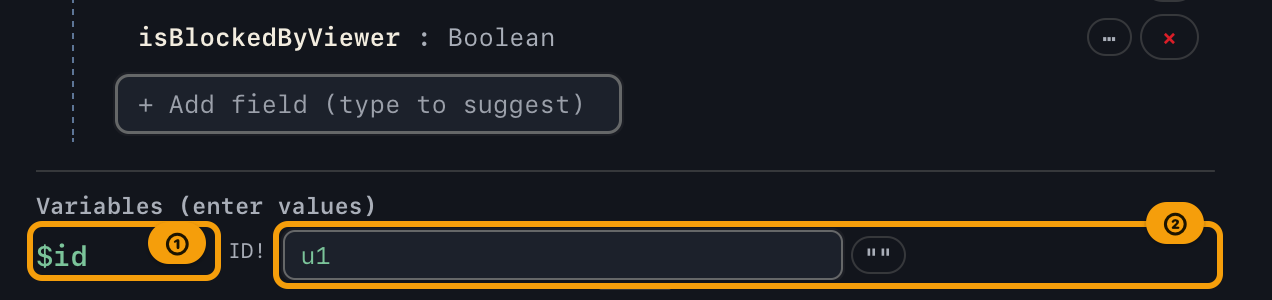
- Variables … replaces top-level arguments with
$nameGraphQL variables, generating the formquery MyQuery($name: Type) { … }together with a variables (JSON) object of the values. Good for reusing a query or sharing it as a parameterized query.
In Variables mode, you enter values in the Variables (enter values) list (the variable matrix) that
appears below the tree you're building. Each row shows $name | type | value input. An argument with no value
yet is shown as keyName (unset); once you enter a value, it's shown as $name from then on (variable names
are derived automatically from the key, with collisions resolved automatically — for example
id → post_id → id2). Input object and list arguments are expanded and entered inside the value field, the
same as in step 8. To avoid entering a value twice, in Variables mode the value field on the tree side just
shows a reference note: "Value entered in the matrix".
Whether generated inline or with variables, the execution result is the same for standard scalar types. Switching modes does not lose the values you entered.
Note: For custom-defined scalar types, inline and variables may in rare cases be interpreted differently. Also,
{{environment variables}}written in an argument value are resolved to the selected environment's values on send (for both the query body and variables). Use the PREVIEW's "Final (resolved)" toggle to check the resolved content; the original{{...}}is kept as is in history and saved data. See Sending queries and responses for send details.
10. Review and copy in the PREVIEW
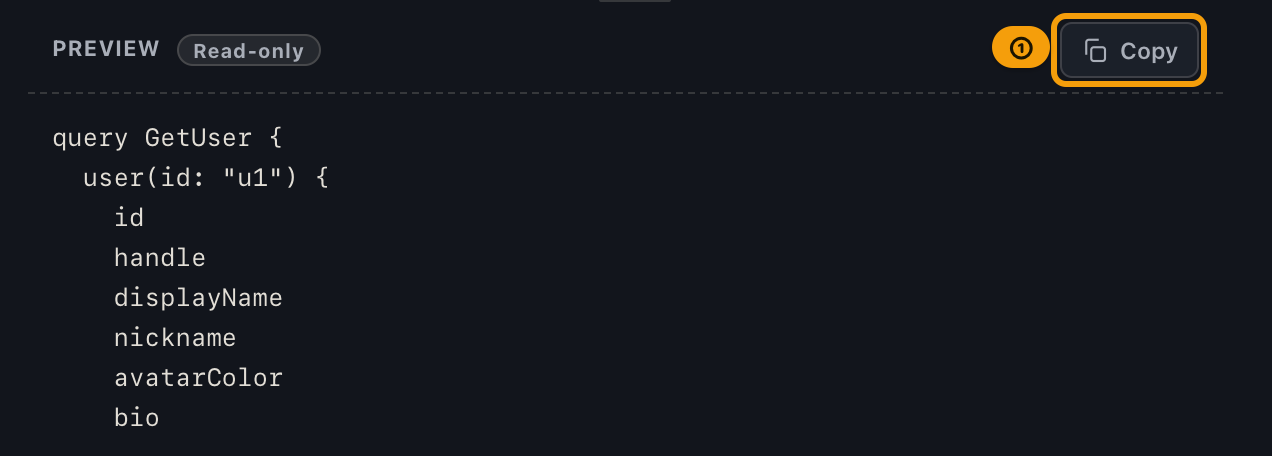
The PREVIEW panel at the bottom of the Query tab always previews the GraphQL query generated from the tree you are assembling. The "Copy" button at the top right copies the displayed text as is to the clipboard. "Copy" is disabled when there are no roots at all.
Assembly example
Take the following fictional schema as an example.
type Query { user(id: ID!): User }
type User { id: ID!  name: String  posts: [Post!]! }
type Post { id: ID!  title: String }
| Step | Action | Result |
|---|---|---|
| 1 | Click + query main on the user row |
user is added as the root, with nothing inside yet (→ user { __typename }) |
| 2 | Click + child main on user |
The immediate leaves id and name are added (the branch posts isn't added yet) |
| 3 | Choose + child ▼ → "All fields (one level)" on user |
For this one time only, posts (a branch) is also added, still with no children (posts { __typename }) |
| 4 | Type title and press Enter in the posts suggestion field |
title is added as a child of posts |
The PREVIEW at this point:
query MyQuery {
  user {
    id
    name
    posts {
      title
    }
  }
}
If user has a required argument id: ID!, add id in the argument area from step 8 and enter a value
(sending it unset would cause a validation error on the server).
Tips
- It is by design that a branch looks empty right after adding and that
__typenameis filled in. When you expand that branch with+ child, it is replaced with the fields you actually added. - Tab contents you are assembling are auto-saved and restored on the next launch or when switching projects. Switching environments does not change the tab contents (because queries are environment-independent).
- Re-importing a schema does not clear the builder contents. To keep a query long-term, save it explicitly with "Add to collection", or keep a copy with "Copy".
What you cannot do at this point (limitations)
- Expanding
+ childon a field that references a union type is not supported (it is always disabled). - Schema-aware autocompletion in the editor is not supported.
When things go wrong
| Symptom | Likely cause | What to do |
|---|---|---|
Pressing + added a new tab |
By design (+ opens the query in a tab) |
Pressing the same query twice does not add another (it moves to the existing tab and flashes it) |
You pressed + query but the inside is empty |
By design (the main button always adds with no children) | Expand it with + child on the added node |
+ child main is disabled but ▼ "All fields (one level)" can be pressed |
The type has only branches, no leaves | Open the ▼ and choose "All fields (one level)" |
Both + child main and ▼ are disabled |
All immediate fields are already added, or this is a union-type field (not supported) | If everything's already added, there's nothing to do — expanding union types isn't supported |
| "Copy" cannot be pressed | The query builder has no root fields yet | Add one or more fields with + query |
An unfamiliar __typename is present |
This is the auto-fill for a branch that has no children yet | Expand the branch you want with + child |
| Sending (or copying and running externally) reports "missing argument" or similar | A required argument hasn't been set | Add the required argument and enter a value in step 8 |
Related documents
- A schema must be imported first: Importing a schema
- Leaf/branch definitions and the type catalog: Browsing the schema documentation
- Environments versus variables: Registering and switching environments / Key terms
- Reordering fields: Reordering and moving
- Sending an assembled query: Sending queries and responses
- Building from a sentence: Building Queries from Plain Sentences (AI Assist)
- Back to the index: User manual contents