
Renaming and creating folders
This page explains how to rename collection folders, saved queries, favorite folders, environments, and projects, and how to create a new collection folder. For terminology, see Key terms.
The controls are the same for all five kinds of item.
Prerequisites
- Names are saved automatically and survive a restart.
- Projects can be renamed too — the same three entry points work, just as for the other kinds of item.
Renaming
There are three ways in. They all do the same thing.
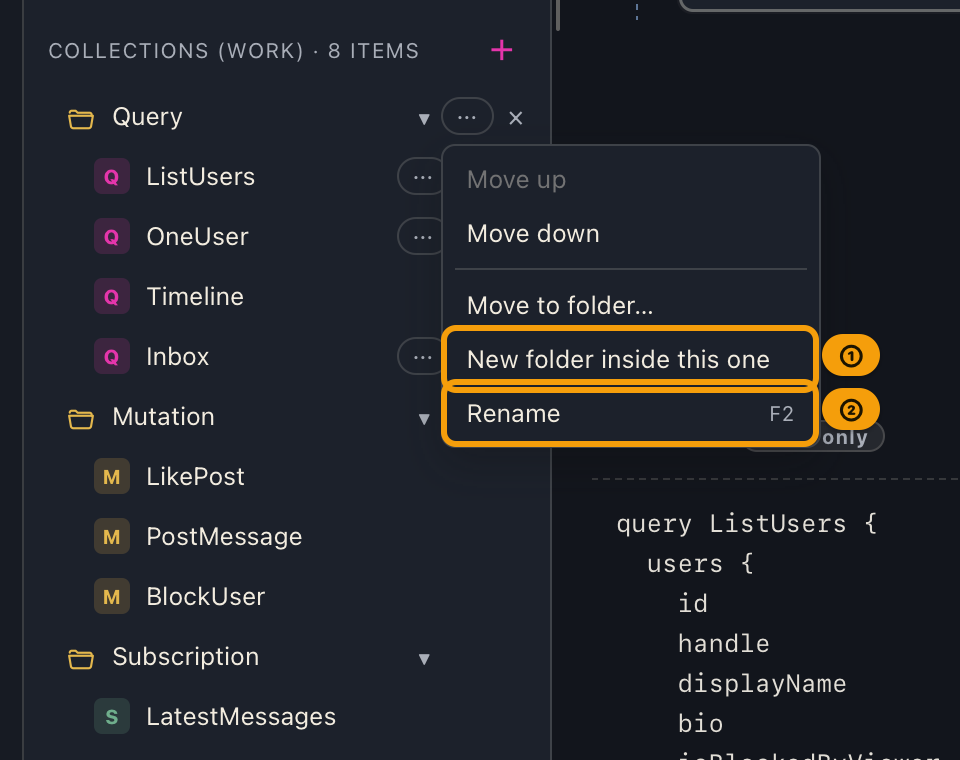
| Way in | Action |
|---|---|
| Double-click | Click twice on the row's name |
| Keyboard | Click the row, then press F2 (on a Mac keyboard, hold fn and press F2) |
⋯ menu |
Click the ⋯ on the right of the row, then choose "Rename" |
The name becomes an editable field right where it was.
Enterconfirms.Esccancels.- Clicking outside the field also confirms (so what you typed is not thrown away).
Leaving it empty keeps the name
If you clear the name and confirm, the original name stays (it is never replaced with something like "New folder"). The field also shows "Leaving it empty keeps the current name". Leading and trailing spaces are removed.
Duplicate names get a number
If the same name already exists in the same place, a number is added automatically (Users → Users (2)). Before you confirm, the field shows "That name is taken, so it will become “Users (2)”", so you never end up with an unexpected name by surprise.
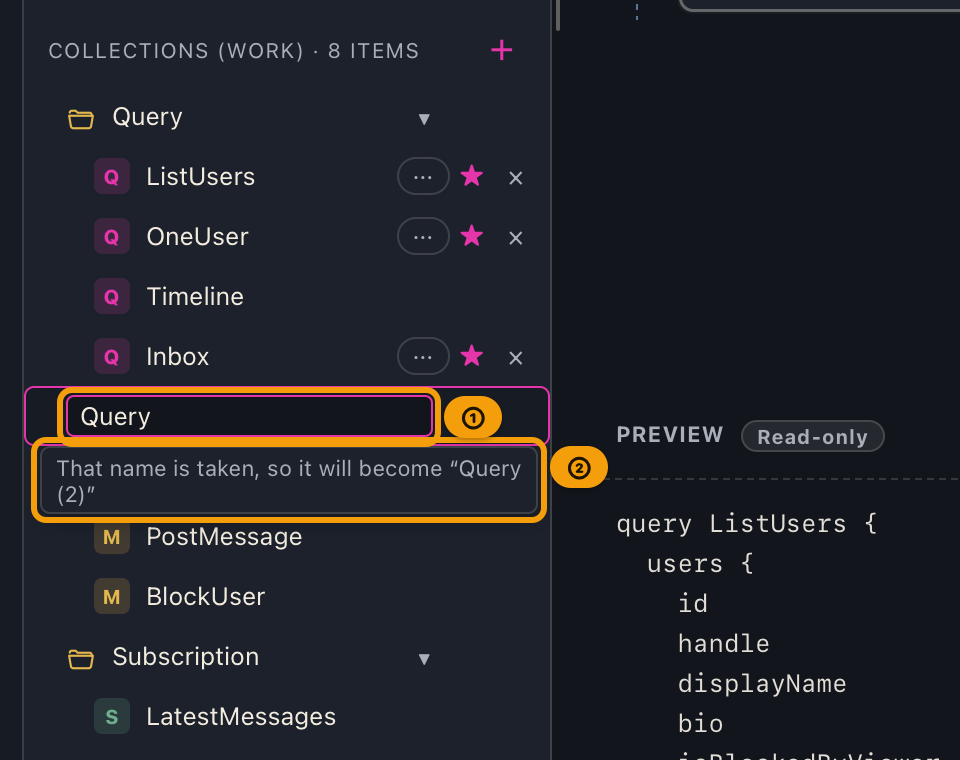
Where a duplicate is looked for depends on the kind of item:
| Item | Where the app checks for duplicates |
|---|---|
| Collection folder | Other folders in the same location (may share a name with a query) |
| Saved query | Other queries in the same folder |
| Favorite folder | All favorite folders |
| Environment | Other environments in the same project (may share a name with an environment in a different project) |
| Project | All projects |
An item's own name never counts as a duplicate, so confirming without changing anything never adds a number.
Creating a collection folder
There are three ways in. All of them open the same input: type a name and press Enter (or "Create") to
create it, Esc to cancel. Creating follows the same rule as above — a duplicate name gets a number.
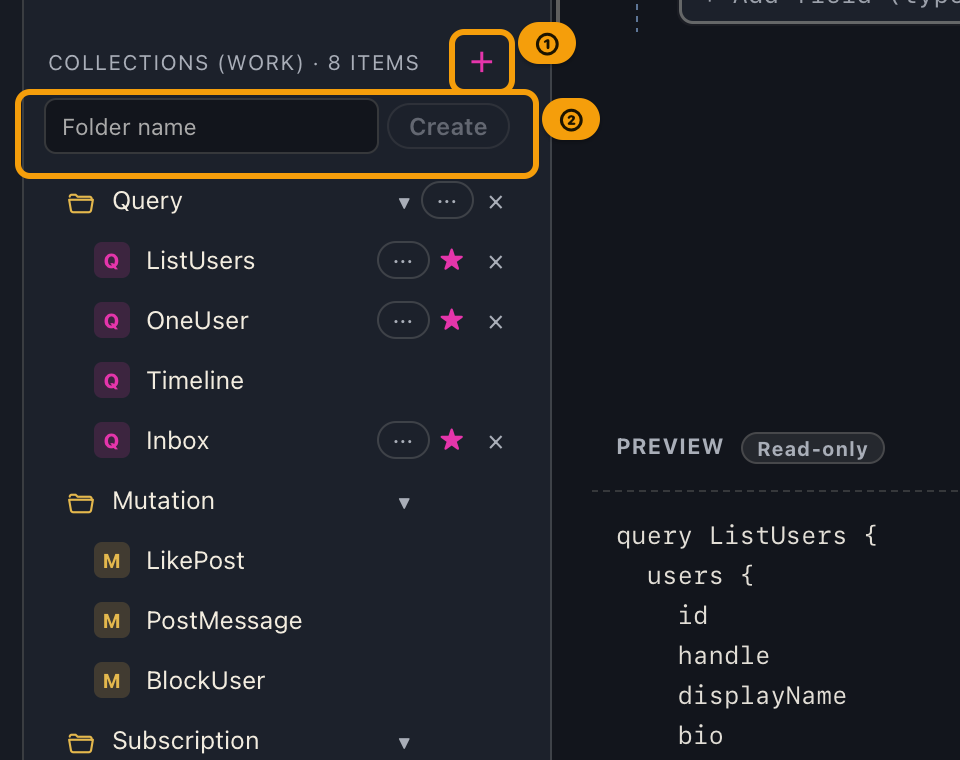
| Entry point | Where it's created |
|---|---|
The + on the "Collection" heading |
The root (the top level) |
A row's ⋯ → New folder |
If it's a folder row, inside that folder (as a subfolder). If it's a query row, at the same level as that query |
| Right-click a row | Opens the same menu as the ⋯ button |
| Right-click empty space in the list | The root (top level) |
When you create a subfolder, the input appears directly under that folder's row, so you can see where it will go.
Favorite folders can be created from the + on the "★ Favorites" heading, or from ⋯ / right-click on a
favorite row. Favorite folders have no hierarchy (you cannot put a folder inside a folder), so they are always created at the top level. Use collection folders when you need deeper organization.
Tips
- Renaming a starred query also changes its name in the collection (they are the same item seen from two places).
- Renaming never changes a query's contents (body, headers, arguments) or its favorite status.
- Renaming a saved query also updates the title of the tabs opened from it. Even if another folder holds a query with the same name, only the tabs opened from the query you renamed change (if the same query is open in several tabs, all of them change). Unsaved tabs created with
+are unaffected. - Rows cannot be reordered while you are editing (this stops a drag attempt from selecting text instead). For reordering, see Reordering and moving.
- Double-clicking a row's name does not open the query, toggle the folder, or switch the environment. Only renaming starts.
- Clicking a row selects it, and the drag handle (⣿) on its left and the
⋯and other buttons on its right stay visible until you click somewhere else (so you can pressF2right away).
What you cannot do at this point (limitations)
- Field names in a query cannot be changed (they come from the schema).
- A request tab's title cannot be edited directly (rename the saved query and the tab follows).
When things go wrong
| Symptom | Cause | What to do |
|---|---|---|
| Double-clicking doesn't start editing | The two clicks were too fast, or too far apart | Use "Rename" in the ⋯ menu, or press F2 |
F2 does nothing |
No row is selected | Click the row first, then press F2 |
Pressing F2 on a Mac changes the screen brightness |
F2 is acting as the brightness key |
Hold fn and press F2 |
| A number was added | The same name exists in the same place — this is expected | See the table above for the rule. The field also warns you before you confirm |
| The name did not change | You confirmed with an empty field | Type a name, then press Enter |
| The name reverted | — | Saving may have failed. If crash reporting is enabled, consider sending a report |
Related documents
- Reordering, and moving items between folders: Reordering and moving
- Registering and switching environments: Environments
- Collection and favorite terminology: Key terms
- Back to the index: User manual contents